Recent Posts

Showing posts with label Microsoft. Show all posts

Thursday, November 22, 2012

Thanksgiving Discount Offers Of Softwares: Hurry Up!!!

Nov. 16, 2012 2012 Happy Thanksgiving Started. In order to celebrate the Thanksgiving with you, Brorsoft is now offering you a special Thanksgiving feast- series of Thanksgiving Big Sales of our HOT products to thanks for you continued support. Brorsoft hopes this can add something exciting to the merry holiday, and certainly it will.

This upto 35% off Discount Code is being available from Nov. 16, 2012 to Dec. 7, 2012. Before Dec. 7, 2012, everyone can enjoy the up to 35% off special offer of our powerful DVD/BD/Video Converters. This big promotion covers our 6 hot products. Here we list the discounted products as below.


DVD Ripper $10 Price-off
Price: $35
Now: $24.9 save more than $10


DVD Ripper for Mac $10 Price-off
Price: $35
Now: $24.9 save more than $10


Blu-ray Ripper 30% off
Price: $49
Now: $34.3 save nearly $15


Blu-ray Ripper for Mac 30% off
Price: $49
Now: $34.3 save nearly $15


MKV Converter 35% off
Price: $29
Now: $18.85 save more than $10


MKV Converter for Mac 35% off
Price: $29
Now: $18.85 save more than $10


What’s more, on the special day, we are glade to offer you a nearly free upgrade- you only need pay an extra $6, can easily upgrade your software to the all-one-in video format converting program: Video Converter or Video Converter for Mac if you like. The only prerequisite is that you have got our product MTS/M2TS Converter, MTS/M2TS Converter for Mac, MXF Converter or MXF Converter for Mac.


If you have intention, please contact support@brorsoft.com or Brorsoft Facebook and leave your order number or email address when you made the purchase to get the further deal and help.

Thursday, August 23, 2012

Windows 8 $15 Upgrade Offer: FAQs for PC Buyers!!!!

Windows 8 $15 Upgrade Offer: A FAQ for Recent PC BuyersMicrosoft is now taking sign-ups for $15 Windows 8 Pro upgrades, an offer that is available to anyone who purchased a new PC on June 2 or later. Microsoft is handling registration directly through WindowsUpgradeOffer.com.
Have you recently purchased a new computer? Here's what you need to know about upgrading to Windows 8 at the discounted price.

What's Needed to Upgrade?

You'll need to know your PC's model number, where you bought it and on what date. You'll also need a phone number and a valid e-mail address, where you'll be notified once the upgrade is available.

Is a Registration Key Necessary?

Possibly. Microsoft may require the key only from certain countries as an anti-piracy measure, as Computerworld noted. Users in the United States may not need their keys on hand.
If asked for your registration key, you can find it on the package of your Windows installation disc, on your PC (for instance, on the underside of a laptop) or in an e-mail if you purchased the software online. If you still can't find it, programs such as Winkeyfinder can locate your product key on the computer.

How Does the Upgrade Process Work?

Windows 8 $15 Upgrade Offer: A FAQ for Recent PC Buyers
In the past, PC makers have handled the upgrade process through their own respective voucher programs. This system was prone to failure, as some users waited weeks or months to receive their upgrade discs.
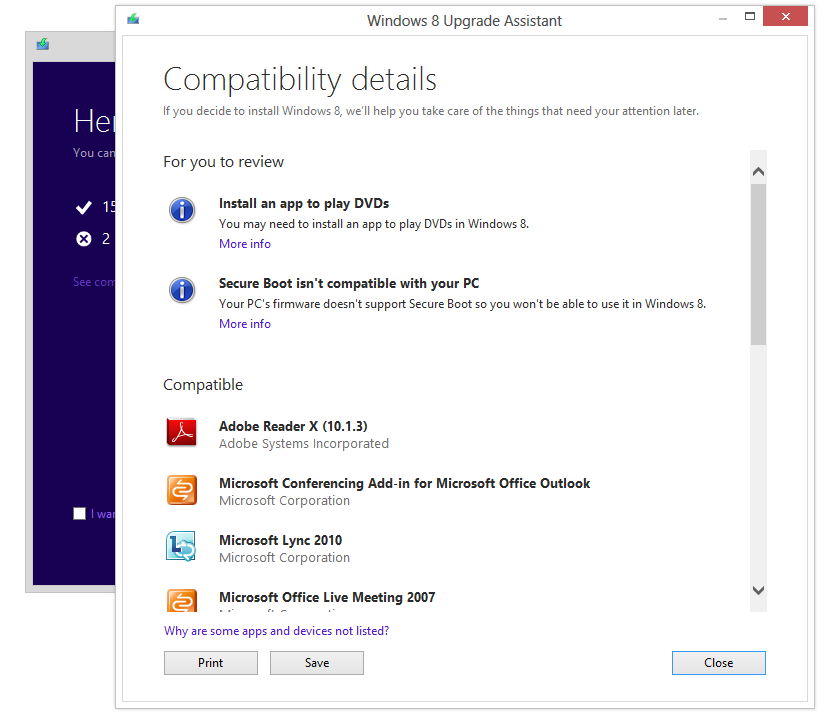
With Windows 8, Microsoft is handling upgrades itself. Users will be able to download the upgrade starting Oct. 26, the same day as general availability. Once the upgrade is available, Microsoft will send out e-mails, directing users to an Upgrade Assistant at Windows.com. This online utility checks for compatibility and then guides you through the download and installation process. (The download comes in at about 2 GB.)
At the purchase screen, you'll see a price of $39.99. You'll be able to enter your promo code for the $15 upgrade on the order confirmation page that follows.

Will Upgrades via DVD Be Available?

Microsoft says an optional installation DVD will be available “for an additional fee, plus shipping and any applicable taxes or duties.” You can also download the upgrade and create your own DVD or USB installation media at no extra charge.

What Version of Windows 8 Does the Upgrade Provide?

All PCs will be upgraded to Windows 8 Pro, regardless of which Windows version they were running before. (The one exception is Windows 7 Starter, which isn't eligible for the upgrade.) For more on what's included in Windows 8 Pro, check out our comparison chart.

When's the Deadline to Upgrade?

To qualify for the $15 upgrade, you must purchase a new PC by Jan. 31, 2013. The deadline to upgrade at the discounted price is Feb. 28, 2013. Microsoft hasn't yet said how much it'll cost to upgrade after the promotion ends.

Is There a Limit on Upgrades?

The $15 upgrade offer is limited to one per eligible PC, and five per customer.

Aside from $15 in Savings, is There Any Reason Not to Buy a New PC Right Now?

Windows 8 $15 Upgrade Offer: A FAQ for Recent PC Buyers
If you hate Windows 8 and all it stands for, then of course you'd want to buy a new PC before the new version hits. But if you're interested in the new interface and the Windows Store, I recommend waiting for hardware that truly takes advantage of the new operating system. That includes not only tablets, but laptops whose trackpads support Windows 8 gesture controls.

Monday, July 23, 2012

Microsoft Ready to Cash: Windows 8 & MS Office 2013!!

Microsoft revealed the date this week when it plans to start collecting on its bets. As of October 26--the official release date for Windows 8--all the cards will be on the table, and we will see if the gamble will pay off or not.
What gamble? Microsoft has a lot riding on Windows 8.
Internet Explorer 10
A successful Windows 8 could lead to a resurgence of Internet Explorer.Internet Explorer 9 only works with Windows Vista and Windows 7. Its successor--Internet Explorer 10--will only work with Windows 7 and Windows 8. The next generation of the Microsoft Office productivity suite is also limited to Windows 7 and Windows 8. PCs that aren’t running Windows 7 or Windows 8 are being left in the dust by Microsoft.
Microsoft has been uncharacteristically brazen about drawing these lines in the sand in recent years. The fate of Internet Explorer and Microsoft Office (and Windows itself) is tied directly to the success or failure of Windows 8. Now, it is putting its proverbial money where its mouth is, and doubling down with the discounted Windows 8. Making Windows 8 available for a mere $40 is a compelling offer.
If you use Windows--and you’re still using Windows XP or Vista—Microsoft is ready to call your bluff. You’re welcome to reject the bargain upgrade to Windows 8 and keep your legacy operating system. After all, it’s working just fine so you don’t need to upgrade, right? But, you’ll be on the wrong side of Microsoft’s line in the sand, and you will probably find both support and sympathy lacking when issues arise.
Many users could care less about Internet Explorer 9 or 10. Chrome, Firefox, and a plethora of other options work just fine. There are also businesses and consumers still happily using Office 2010 or even Office 2003, and they’re not interested in switching to Office 2013 any time soon. But, the $40 price tag on Windows 8 may still be enough to convince people to make the switch--just to hedge their bets and leave their options open.
Office 2013
If you want to use Office 2013, you'd better make the switch to Windows 8.While many users love Windows XP and maintain that they haven’t moved to Windows Vista or Windows 7 because they simply don’t see the need, I can’t help but believe money is still a major contributing factor in that decision. I translate it to “I like Windows XP, so it’s not worth $200 for me to buy Windows 7.” If Microsoft gave away Windows 7 for free, I think many of those holdouts would happily embrace the newer operating system.
Well, Microsoft isn’t giving Windows 8 away for free, but it is making a Godfather-esque “offer you can’t refuse”. With Windows XP rapidly approaching its end of life in terms of Microsoft support, that $40 move to Windows 8 will be very appealing. But, the bargain offer has a time limit, so users only have until January 31, 2013 to decide.
Microsoft has a lot on the line. Beginning October 26 we’ll see if Microsoft’s gamble will pay off.

For More Details, Click Hare 

Tuesday, July 17, 2012

Microsoft Office 2013 Preview: Hands On!!!!

Office 2013 is touchscreen ready, cloud friendly, and adds bold new twists to the Microsoft Office franchise. On Monday Microsoft CEO Steve Ballmer outlined what he said was the "biggest most ambitious Office" update to date.

For More Details, Click Hare 

                                    Download Sexy Girls Wallpapers, Click Hare

For the desktop Office 2013 delivers a host of smart updates to Word, Outlook, and Excel. But where Office 2013 shines is embracing the mobile world and the cloud with deep integration with Microsoft’s cloud service SkyDrive and collaboration - integrating its recent acquisitions Skype and Yammer. Windows 8, and the upcoming release of Microsoft Surface tablets and Windows Phone 8 smartphones, also play a huge roles in coloring Office 2013 with new features.
Ahead of Microsoft's big news Monday Microsoft provided PCWorld with two Windows 8 tablets (no, not the Surface) and access to the customer preview versions of both Office 2013 and the cloud-based Office 365.
Here is a look at how the software suite runs on laptop, desktop touchscreen, and tablet platforms.
In this story, PCWorld Senior Editor Michael Brown first gives his impressions of working with Office 2013 and 365 on a laptop and a desktop PC. Contributing editor Tony Bradley then writes about his tests of the new products on a tablet PC.

Office 2013, Office 365 on a Laptop and a Desktop PC

I spent most of my time with Word and Excel on a laptop and on a desktop all-in-one equipped with a touchscreen. As expected, Microsoft is tying Office 2013 and Office 365 tightly to its SkyDrive cloud-storage service.
You're free to use other services, but I suspect that this integration will lure plenty of Office users away from their paid accounts on Google, Dropbox, and SugarSync. If you buy a version of Microsoft's new software and sign up for a Microsoft Live account, you'll get 20GB of free storage in SkyDrive.
Ofiice 365 Preview: settings screen 
The Ofiice 365 Preview settings screen.
Both Office 2013 and Office 365 offer largely the same user experience, but Microsoft is clearly steering its customers toward the cloud-based version. The company is also marketing Office 365 to consumers for the first time, rather than strictly to businesses.
Purchase the traditional boxed copy of the software, and you get a license to install the software on one device. You can also use Office 365 on any computer or tablet, but that won't be very useful if you find yourself somewhere without your usual computer and without Internet access.
Buy a subscription to Office 365, and you get licenses to download and install Office 2013 on up to five devices (right now, the list of compatible devices is limited to PCs and tablets running Windows 7 or Windows 8, though Microsoft says Office 2013 for Mac will be available by the time the final software is released).
And, as with the boxed copy, you can stream Office 2013 to any PC or tablet running Windows 7 or Windows 8. Microsoft has not yet announced pricing for either product.

The New User Interface

The Office 2013 user interface isn't markedly different from the one in Office 2010: The ribbon remains front and center, though the text and the icons inside it are a bit larger and are spaced farther apart. These changes take better advantage of large monitors and touchscreen displays. Nevertheless, the ribbon isn't too big for an average laptop display, even with the addition of two new tabs: Design and Developer (actually, the Developer tab is present in Office 2010, but it's hidden by default).
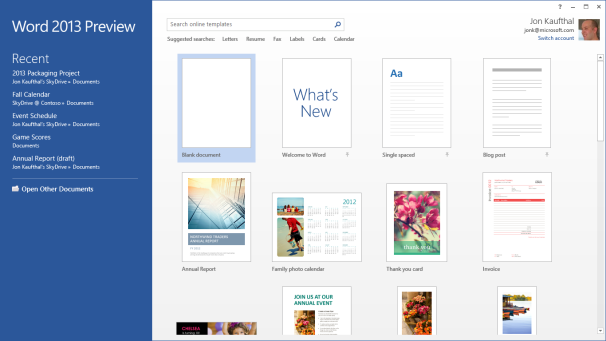
Word 2013If you're familiar with the ribbon user interface from Office 2007 and Office 2010, you’ll feel right at home with Word 2013.
Though I've used a number of all-in-one computers with touchscreens over the past few years, I don't use the touch interface very often. Perhaps I'm just a creature of habit, but it doesn't feel natural to take my fingers off the mouse to stab them at icons on the screen (or maybe my fingers are just too fat to be accurate). In any event, though I tried hard to use the ribbon with my finger, I kept returning to the mouse. The UI delivers more benefits on tablet platforms, but it doesn't feel any less natural when used with a mouse.

New and Cool Word Features

The Embed PDF feature in Word; click for full-size image. Microsoft has made a number of cool, interesting, and very useful improvements to Word 2013.

The Embed PDF feature in Word.On the usefulness front, you can now import a PDF directly into Word, edit it as a Word doc, and then save it as either a Word doc or a PDF. Not only do imported files retain all of the original documents' formatting--including headers, columns, and footnotes--but elements such as tables and graphics can be edited in Word as such.
Import a PDF file containing a table, for example, and you can edit the table just as though you had created it in Word from scratch. You can also embed a PDF file in a Word doc.
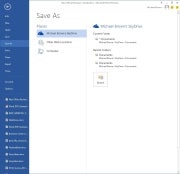
Saving files to the cloud; click for full-size image. Microsoft expects that people will want to save all of their files to the cloud. Your SkyDrive account is listed first, then Another cool feature is the ability to connect to online resources and bring them inside your documents. For example, you can use Bing to search the Web for videos, without leaving Word, and then embed the HTML code for that video in your document.
Link your SkyDrive account to your Flickr account, and you can jump to your online photo collection and embed photos directly in the document--again, without ever leaving Word.
Embedding a screenshot from an app running on your PC is even easier: Click Insert > Screenshot, and a window with thumbnails of every window open on your desktop will become visible. Click the image you want, and it will appear wherever your cursor is.
When you embed an image or a video in a document, you can grab that element and move it around the document and watch as your text automatically reflows around it in real time.

Word Collaboration Features

When you're collaborating with other people on a document, being able to track the changes that each person makes is critical. This becomes much easier to do in Word 2013, thanks to a new feature called simple markup view.
A red vertical line in the left margin indicates that changes have been made to the document, while a word balloon in the right margin indicates the presence of a comment. Click on the vertical line to reveal both the edit changes and the comments; click on the word balloon to show just the comments.
Microsoft has also added a new viewing mode, called Reader. When you view a document in this mode, each paragraph has a small triangle in front of it. Click the triangle after you've finished reading its associated paragraph, and the paragraph will collapse so that more text will appear, without your having to scroll to another page.
I haven't had time to explore every new feature of Word 2013, but I like what I've seen so far. It looks as though Microsoft has significantly improved the application, adding some great new features without mucking anything else up in the process. Nevertheless, my opinion at this stage is based on very limited time with the product.

Excel 2013

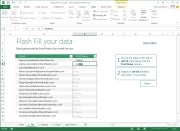
Like the new version of Word, Excel 2013 feels fresh yet comfortingly familiar. Microsoft has added several new whiz-bang data-analysis tools, including one called Flash Fill. When you take an element of data that you've already entered in one column and enter it in a second column, Flash Fill will predict that you intend to do that for every value in the second column, and will offer to fill in the second column for you accordingly.
Excel's Flash Fill; click for full-size image.
Excel's Flash Fill feature will notice patterns in your data entry, predict what you intend to do next, and then offer to fill in the rest of the data for you.
Microsoft provided a sample two-column spreadsheet to demonstrate how this feature works. The first column contained email addresses in which each person's address was formatted as first-name.last-name@domain-name. The second column was to be used to store each person's first name.
Though that isn't the most realistic scenario imaginable, it works. You establish the reference example by typing the first name of the first person in the email address column; then, as you begin typing the second person's first name, Excel predicts that you want to do the same for every other value in the first column and offers to do just that automatically. Press the Enter key, and the second column automatically fills with first names.
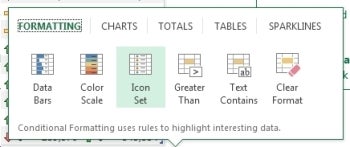
Colors and symbols can help you analyze data more quickly, and Excel 2013's new Quick Analysis tool uses these elements to identify and highlight trends and changes. Select the rows and columns that you wish to have analyzed, click the icon that appears in the bottom right corner, and choose the conditional formatting that suits your needs. Instead of looking at rows and columns of gray numbers, you'll instantly see a spreadsheet formatted with color scales, bars, and icons.
Excel’s Quick Analysis tool.
Excel’s Quick Analysis tool automatically suggests conditional formatting that will help you visualize data locked in your spreadsheets.Charts and graphs provide another easy way to visualize data, and spreadsheet software has long permitted users to generate charts and graphs based on the data they enter into its rows and columns.
Excel 2013's new Quick Analysis tool will automatically suggest the most appropriate types of graphs--bar, pie, scatter, and so on--based on the data set that you select.
My early impressions of Excel 2013 are about as favorable as my corresponding impressions of Word 2013. Microsoft seems to have introduced some solid new features without imposing a difficult learning curve. Take that, ribbon haters.
We'll take a closer look at Outlook, Powerpoint, OneNote, and the rest of the suite soon.
--PCWorld Senior Editor Michael Brown

Office 2013 and Office 365 on a Tablet: First impressions

Microsoft is betting heavily on the idea that tablets are the future of PCs. Like Windows 8, Office 15 was built from the ground up to take advantage of a tablet's unique features, while at the same time addressing the limitations of the touchscreen interface for creating content.
I ran Office 13 through its paces on a Samsung Series 7 Slate PC running Windows 8 Consumer Preview to see how well it performs on a tablet. Bear in mind that this tablet runs Windows 8 Pro, not Windows 8 RT, and that Office 2013 and Office 365 differ from the Office for RT apps that will be available on ARM-based Windows 8 tablets.
Microsoft has done a great job of making the tools and functions of the various Office applications accessible from a touchscreen interface without lessening the capabilities. For example, holding your finger on a misspelled word will pull up Office's list of possible corrections; and holding your finger on virtually anything brings up the options you'd normally find by right-clicking a mouse.
Word's functions on a tablet screen.Microsoft did a nice job of fitting all of Word's functions into the screen space of a tablet.I did sometimes find that the options on the ribbon interface were hard to tap. The buttons are a bit small for my fingers, and you can't pinch-to-zoom to enlarge the ribbon in Office 2013. On the other hand, you can make the ribbon bar disappear to maximize the area available for your document--in both Office 2013 and Office 365--which is nice.
The Office 2013 suite I installed on the tablet included Word, Excel, PowerPoint, OneNote, Outlook, Publisher, Access, Lync, and a couple of bit players. The only apps available within Office 365, however, are Word, Excel, PowerPoint, and OneNote. Outlook exists in Office 365 as well, but the option was grayed out on the software I worked with.
One thing that I like about working with Office on the tablet is more a function of Windows 8 and/or the hardware its running on than of Office itself. The touchscreen virtual keyboard is sensitive and fluid enough to allow me to type at very nearly full speed. Also, tapping the symbols and numbers button brings up an actual number pad, which is much more efficient for entering figures in an Excel spreadsheet.
That said, it was a little annoying to have to tap the keyboard icon at the bottom of the display to open the virtual keyboard. It would have been nice if Office applications had recognized when I tapped on a text field, and responded by automatically opening the virtual keyboard. Perhaps, though, Microsoft wanted to respect the limited screen real estate of the tablet and let users navigate documents without having the keyboard pop up all the time.
Overall, the experience is solid. Using it differs from using a mouse and keyboard with a traditional PC, but it's a functional arrangement. Microsoft has obviously invested a lot of thought and effort in ensuring that the tablet experience that Office offers is worthy of the Microsoft Office name.
For More Details, Click Hare 

Friday, June 29, 2012

How to Produce Online PowerPoint Presentations !!

How To Produce Online PowerPoint Presentations
Once you’ve created a PowerPoint presentation, it’s time to think about how you will present it. PowerPoint has a few options for making online presentations, but they deal with just a few scenarios. Fortunately, several free third-party products are available to help you achieve the results you’re looking for.
PowerPoint 2010’s Broadcast feature will do the job if you’re presenting to an online audience (up to 50 people) watching in a Web browser during a real-time conference call. They won’t even need to have their own copy of PowerPoint. But if the people to whom you’re pitching want to view the presentation offline at their leisure, or if you have to set up the presentation so that any number of people can view the slideshow at any time, you’ll need something else. I’ll show you several methods of accomplishing each of these goals.

Broadcast a Presentation in Real Time

If you want to present online in real time, simply use PowerPoint 2010’s built-in Broadcast tool. (Note that you need a Microsoft Live ID to use this feature.) Once you’ve built the presentation, click File in the top menu bar and then choose Save & Send. Next, select Broadcast Slide Show (in the middle column of options) and then click the Broadcast Slide Show button (it’s the only button in the third column). When the Broadcast Slide Show dialog box appears, click Start Broadcast. If you’re not already signed in to your Microsoft Live account, you’ll see a prompt to sign in. At this point, you need to wait while your presentation uploads to the broadcast service.
How To Produce Online PowerPoint Presentations
PowerPoint 2010's Broadcast feature lets you make presentations on the Web in real time.
Once the upload is complete, you’ll see a dialog box containing a link that your viewers can use to open the slideshow on their own machines. Click Copy Link to put the link on your clipboard, or click Send in Email to distribute it that way (the latter link, however, defaults to opening Outlook, which might not be suitable if you use browser-based email).
You must wait until everyone is prepared for the meeting before you start the presentation. When the audience is ready, click the Start Slide Show button in the Broadcast Slide Show dialog box. The slideshow will display on your screen and on your audience members' screens simultaneously, and you can work through the slideshow one slide at a time knowing that everyone’s screens will be in sync. The broadcast stream will not carry audio, so don’t bother adding a soundtrack or sound effects to your presentation.
When the presentation is finished, click the End Broadcast button to stop the broadcast and disconnect all viewers from the slideshow (this won’t, of course, disconnect them from the independent conference call).

Deliver a Presentation as a Video

How To Produce Online PowerPoint Presentations
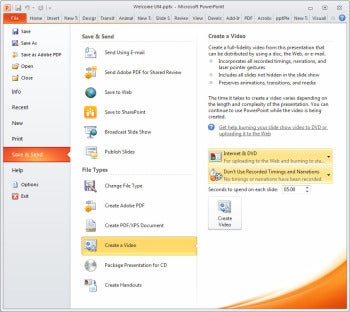
PowerPoint 2010 can encode presentations as .wmv video files.If you’d like to convert your slideshow into a video presentation, PowerPoint 2010 can encode it to a .wmv file. Click File > Save & Send, and then select Create a Video (in the middle column). In the right column, you’ll see two sets of drop-down menus with options for encoding the video. Click the Computer & HD Displays button to reveal two additional options: Internet & DVD (the best choice for videos that you will share online) and Portable Devices. Once you’ve made your display choice, click the Recorded Timings and Narrations button and choose the Record Timings and Narrations option to add a soundtrack, if your presentation doesn’t already have one.
Progress through your presentation, speaking about each slide as you display it. Click the Next button on the recording toolbar to move to the next slide. Repeat these steps until you’ve recorded the audio for your entire slideshow. When you reach the last slide, the program returns you to the PowerPoint Backstage area. Click the Create Video button and type a name for the video file, and then wait as PowerPoint encodes the video.
Once it has created your video, you can upload the video file to the Web. Use an online video-streaming service such as Vimeo, and you’ll be able to mark the file as either private or accessible to anyone.


Share a Presentation via SkyDrive

How To Produce Online PowerPoint Presentations
Upload a presentation to a SkyDrive account, and your audience will be able to view it from a shared folder.Anyone using Microsoft’s SkyDrive cloud-storage service can upload PowerPoint presentations to the cloud for sharing (with everyone, via the Public folder, or only with those people you have invited). Choose File > Save & Send > Save to Web. As with PowerPoint’s Broadcast feature, you need a Windows Live account to take advantage of this feature.
How To Produce Online PowerPoint PresentationsYou'll see a display of the folders on your SkyDrive. Click Public if you want to share the presentation with everyone. If you want to share it with a limited number of people, select a shared folder or add one by clicking New. Back in PowerPoint, click Refresh, select the desired folder, and then choose Save As to save the file there.
Your SkyDrive sharing options include Facebook, Twitter, email, and a direct link.Once the file has uploaded to your SkyDrive account, log in to your SkyDrive folder, click the presentation, and click Share. Now you can decide whether to send an email message containing a link to the presentation, to post the link to your Facebook or Twitter account, or to obtain a link that you can send to someone via other means.

Embed a Presentation in a Web Page Using Google Docs


How To Produce Online PowerPoint Presentations
Google Docs gives you an array of settings for publishing your presentation to the Web.At times you may want to publish a presentation that anyone can access, perhaps by embedding it in your website. One way to do this is to upload the presentation to your Google Docs account and publish it to the Web from there.
You need a Google Docs account, of course. Save your PowerPoint presentation as usual, and then sign in to your Google Docs account and click the Upload button (you’ll find it represented by an icon on the left side of the page, to the right of the Create button). Choose Files from the pop-out menu, locate your presentation, and upload it. Google Docs will automatically convert the file to its native format. Once the presentation is in Google Docs, open the file in Google Presentations, click the Share button (in the upper-right corner of the interface), and set the visibility options and access levels as you like.
Google Docs offers three visibility options: 'Public on the Web' means that anyone can see the presentation, 'Anyone with the Link' means that only those with whom you’ve shared the link can see the presentation, and 'Private' means that only you have access to the file. You get four Access levels, too, ranging from Commenters (who can view, comment on, download, and copy the presentation, but can’t delete it or change its sharing settings) to Owners (who have complete control over the presentation).

Deliver Presentations to iPad Users

How To Produce Online PowerPoint Presentations
SlideShark makes it easy to share PowerPoint presentations with iPad users.No iPad version of PowerPoint exists currently, but you do have a way to share your PowerPoint presentations with iPad users. Sign up for a free account with SlideShark, and upload your presentation. Your iPad-using audience will need to download and install the free SlideShark app before they open the presentation. SlideShark can also share your PowerPoint presentations via Facebook, LinkedIn, Twitter, or email.

For More Details, Click Hare 

Saturday, June 23, 2012

Microsoft Surface: Wi-Fi Only at Launch

We may have an answer to one of the big questions about Microsoft's Surface. The software maker's tablets will be available only with Wi-Fi at launch, according to an online report. That's bad news for road warriors hoping to pick up a Surface with wireless broadband access for business trips, but maybe the wait for a Surface with built-in 3G or LTE-connected Surface won't be long.
It's unclear what Microsoft's plans are; nevertheless, Bloomberg cites two “people familiar with the matter” who say Surface will "initially go on sale without a connection to mobile-phone networks.” Did you catch that? Surface reportedly won't have 3G or LTE connectivity built in when it initially goes on sale.
That sounds to me like Microsoft may release the ARM-based Windows 8 Surface tablet, dubbed Surface for Windows RT, as a Wi-Fi-only tablet in the fall. Then the more high-powered Intel-based Surface for Windows 8 Pro would follow a few months later with mobile connectivity baked in. That's speculation, but it seems logical.
Surface RTis designed for home users. It will run on an ARM processor, have slower USB 2.0 ports (Surface Pro supports USB 3.0), and 32GB or 64GB of storage. Most people buying this device are looking for the basics: e-mail, Web browsing, online videos, social networking, and some basic desktop programs (Word, Excel, rudimentary photo editing). More often than not, home users don't take their devices beyond their front door. And when they do it's usually to a Starbucks, airport, or college campus where Wi-Fi networks are available.
Adding Wi-Fi connectivity through a MiFi or other mobile hotspot or USB plug-in device is an option for the early Surface user who wants more. It's an added expense, but the Surface user has the choice of using a USB device, unlike with the USB-less iPads.

Surface Pro, on the other hand, will be better equipped for professionals who need a machine they can take to job sites. These users also tend to need Internet access even if a Wi-Fi network isn't present. Important specs for Surface Pro include a faster Intel Core-i processor, larger storage capacity (up to 128GB), USB 3.0, microSDXC reader, and digital pen technology (for graphic artists and others who are into that kind of thing). Surface Pro is the machine you want in order to work, at least based on the specs, and it would be a strong candidate for a mobile connectivity option.
Microsoft hasn't announced any launch dates for Surface other than to say Surface RT will be available during the Windows 8 launch. Surface Pro will be available about three months later. Windows 8 is generally expected around October or November, which would put the Surface Pro release in early 2013.
January or February is safely outside the "initial" sales period for the Surface RT in late 2012. So perhaps the real story shouldn't be "Surface will be Wi-Fi only at launch," but "Surface RT will be Wi-Fi only?" It's a guess, but it's logical.

Wednesday, June 20, 2012

Windows Phone 8 Will Be Deeply Integrated With Windows 8 OS!!

Windows Phone 8 Will Be Deeply Integrated with Windows 8 OSMicrosoft announced today that its forthcoming mobile operating system, Windows Phone 8, will become closely linked with desktop PCs and tablets running Windows 8.
With many wondering about the fate of Windows phones in an iPhone world, Microsoft is effectively linking the fate of its mobile operating system to the success of its PC operating system, which is currently used by 1.3 billion people worldwide. It is Redmond's second big announcement this week: The Microsoft Surface tablet event happened Monday.
"The future of Windows 8 is a 'shared core' between Windows Phone 8 and Windows 8," said Windows Phone 8 product manager Joe Belfiore. This means that the two operating systems will share the same kernel, plus the same files system, multimedia apps, and graphics support.

Microsoft Windows Phone 8
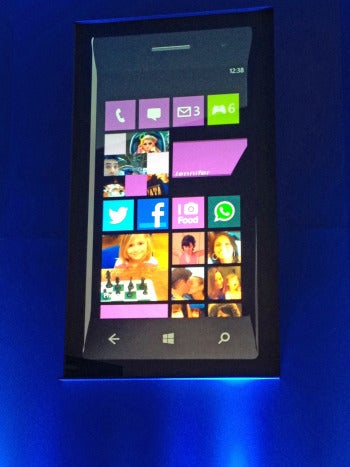
The Microsoft Windows Phone 8 "tiles" interface.For users, this integration means that apps that work on Windows phones will also work on desktop PCs and tablets, and they will find it easier to share content and apps seamlessly between their Windows Phone and their Windows tablet or desktop PC.
The shared core also will make life easier for developers because they will be able to develop content and apps that run on both phones and PCs; they can spend far more time developing, and far less time "versioning."
Windows phone users will benefit from a reenergized development community that will develop cooler apps--apps that could be far more competitive in number and quality than Apple ecosystem apps.
Here are some of the major improvements in Windows Phone 8:
  • Tiles Interface: Microsoft rolled out a newly designed version of the “tiles” user interface for Windows Phone 8, which it calls the "marquee feature" of the new mobile OS. The tiles are “live” and can show various types of content at different times. (See image above.) You can also make a tile for a Nokia map on the home screen (see 'Mapping' item, below).
  • Web-Page Rendering: Microsoft also announced that Windows Phone 8 will support the same Web-page rendering engine as Windows 8, so developers can create Web pages for desktops and tablets, and know that the pages will work the same way on phones.
  • Mapping: Windows Phone will have Nokia mapping technology built in. This comes just on the heels of news that Apple has developed its own mapping app for the iPhone, but Nokia’s maps have more development time behind them, and are expected to be a major addition to WP8.
  • Display Support: Windows Phone is (finally) adding support for standard 720p, WXGA 1280 by 768, and WVGA 800 by 480 displays.
  • Storage: WP8 will add microSD card support to its phones. Windows Phone users will be able to employ the small memory cards to store memory and move data back and forth between their phones and their PCs.

Mobile Wallet

WP8 mobile wallet
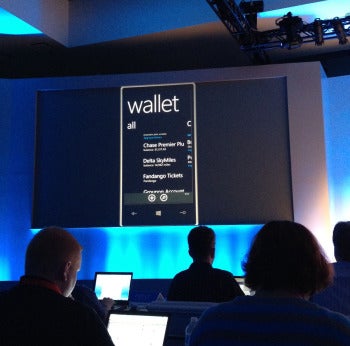
Windows Phone 8 mobile-wallet feature shown at demo.Microsoft will use Windows Phone 8 to catch up with Android and the iPhone on mobile-wallet capabilities. Windows Phone 8 will include a “mobile-wallet hub” that will allow users to pay for goods and services with their phones.
Users will be able to store financial information of many different kinds in the wallet, such as bank and credit card data, frequent-flyer memberships, coupons, and even their library card. The wallet will integrate with new apps like the forthcoming Chase Bank app, which was demonstrated at the event today.

Game Development

Microsoft announced that developers will now be able to develop games for both phones and PCs using native C++ code and a set of common APIs (application programming interfaces).
This will allow developers to put up better-looking apps for both platforms, and to spend much less time developing seperate versions for PC and mobile.

The Business Angle

Microsoft is also adding features in Windows Phone 8 to make the OS more business-friendly. These include support for Bitlocker encryption, secure boot, flexible app distribution, and device management. This is a big deal for IT managers, and it will help Microsoft pursue its strategy of winning the consumer phone market by making a phone that works for business life as well as personal use.
Windows Phone 8 Company Hub
Windows Phone 8 Company Hub.Windows Phone 8 will offer IT managers a "Company Hub" feature that will allow them to create a customized experience on the phone for employees.
The hub (see image at left) will show the apps that the employee has already installed, and then suggests some that might be useful, like the "time-off" app. An alerts page will notify employees to change their passwords. Microsoft will also provide templates to help businesses quickly put together miniportals for employees' Windows 8 phones.

No Joy for WP7 Owners

Unfortunately, owners of Windows Phone 7 phones will not be able to upgrade to the new OS this fall. The OS update adds support for core elements like dual-core processors, voice recognition systems, the graphics system, and the modem--developments that existing hardware cannot support.
However, Microsoft says that existing WP7 phones will be able to upgrade to WP 7.8, which will at least give them the new interface, or "live-tiles" experience.
Windows Phone 8 is expected to go into general release with the Windows 8 operating system this fall. The first Windows Phone 8 phones will come from Nokia, Huawei, Samsung, and HTC, and will be built with chips from Qualcomm. Microsoft rolled out the new features in a Windows Phone platform preview for developers (who need to know the new features early) at the Windows Phone Developer Summit held in San Francisco today.

Microsoft New Surface Tablet!!

Microsoft Surface Tablets: 5 QuestionsMicrosoft left a lot of unanswered questions after following Apple into the tablet hardware business Monday with its new Windows 8-based Surface PCs/tablets. The software maker introduced the new family of devices during an event in Los Angeles.
Microsoft said the new Surface tablets are meant as companion hardware for Windows 8--the most dramatic overhaul of the OS since Windows 95. Company CEO Steve Ballmer said: "We wanted to give Windows 8 its own companion hardware innovation." Windows 8 is expected to be available in the fall.
The Surface brand was originally used for a tabletop touchscreen computer Microsoft launched in 2007.

Early Impressions Are Positive

Looking at the spec sheet, the new devices sound promising and early impressions are generally positive. The new tablets will come with a 10.6-inch display, a kickstand for tabletop viewing, and a super-thin keyboard case that attaches to the device with magnets.
Surface will come in two flavors: Surface with Windows RT and Surface Pro with Windows 8 Pro. Windows RT is the version of Windows 8 designed for ARM processors; it includes the new touch-friendly Metro-style interface, as well as a limited version of the traditional Windows desktop for running Internet Explorer and Microsoft Office.
Surface tablets with Windows RT will include a micros slot, USB 2.0, and a Micro HD port. The devices will weigh about 1.5 pounds and be about 0.36-inches thick. Microsoft did not say which processor the Windows RT device would have, but did say the tablets will come with your choice of 32GB or 64GB of storage.
Microsoft Surface tablet with Metro interface
Microsoft Surface tablet with Metro interfaceThe Surface Pro tablets will be Intel-based with access to the Metro UI as well as to the fully functional Windows desktop and will come in 64GB and 128GB versions. The tablet will have a microSDXC card slot, USB 3.0, and Mini Display Port. The Surface Pro will weigh just under two pounds and be about half-an-inch thick.
That's what we do know about Surface, but there are also a few interesting questions left to answer.

How Much Will It Cost?

Microsoft was short on details when it came to pricing the new Surface tablets. The company said the Windows RT version of Surface would cost about the same as comparable slates. Surface Pro, meanwhile, would be priced similar to comparable competitive Ultrabook PCs.
Let's assume that comparable tablets for the Windows RT version mean the market leader, Apple's iPad. So the entry-level Surface models should cost about $600 for the 32GB version and $700 for the 64GB model.
Samsung Series 9How much Surface Pro devices will cost is another issue entirely since Microsoft wants to compete with Ultrabook PCs. When Intel introduced the new class of portable laptops in spring 2011, they were supposed to be priced under $1,000. But that dream is only now becoming a reality with second-generation Ultrabooks.

Samsung Series 9Devices like the Lenovo U310 and 410 are priced at $750 and $800 respectively, Vizio just released a line of Ultrabooks that start at $900, and the base model for Sony's new Vaio T13 costs $800. Will the Surface Pro be priced under $1,000 as well, or will Microsoft reach for a higher cost similar to the Samsung Series 9 ($1,400-$1,500) or the Asus Zenbook Prime UX31A ($1,100)?

When Will It Arrive?

The Windows RT version of Surface is due to come out during the general release of Windows 8, which is expected in the fall, around October. The Surface Pro is scheduled for release about three months later, meaning in early 2013. Microsoft did not offer any specifics beyond these general time lines.

Will Microsoft Ever Give Up on the Digital Pen?

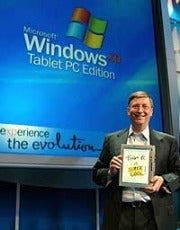
Bill Gates at the 2002 introduction of Windows Tablet PC edition with digital penBill Gates at the 2002 introduction of Windows Tablet PC edition with digital penMicrosoft couldn't resist giving a nod to its legacy tablets (convertible notebooks) by including digital pen functionality with the Surface Pro. But haven't consumers already spoken and said, "Thanks, but no thanks" to digital pen input technology by adopting the finger-driven iPad in droves?

What About 3G/4G Connectivity?

Microsoft didn't say whether the new Surface devices would include mobile data. Perhaps the company didn't want to discuss that issue while it works on developing carrier partnerships for its new tablets. Wi-Fi only devices are great, but many people--especially those looking at the Surface Pro for work--will want the option of a higher-priced device that comes with 3G/4G connectivity.

Will the Surface Fulfill the Promise of Apple's iPad?

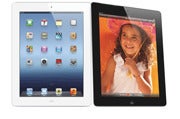
Apple's latest iPad tabletWhen technology critics speculate about the future of the iPad, many wonder if it could one day replace the home PC for many users. In some ways it has already done that for users who just want a computer that can do casual Web browsing, e-mail, social networking, and video streaming. There are also some professionals using the iPad instead of a laptop at work, including programmers, journalists, and small business owners.
Apple's latest iPad tabletBut while the iPad is becoming a popular choice for the road, many people are still holding on to their laptops. That could change with Surface and similar devices since they offer a familiarity the iPad doesn't necessarily have.
This is especially true with the Surface Pro: It's a full Windows PC that is still a relatively sleek tablet with a slim travel keyboard designed with touch typists in mind. That means you can take all the programs you use right now and stick them on something the size of a tablet. Even the entry-level version of Surface running Windows RT offers the more familiar desktop interface (albeit with limited functionality) for people who want a basic desktop.

Something Missing

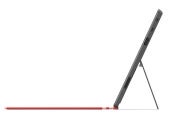
Microsoft Surface in profileMicrosoft Surface in profileBased on what Microsoft has said, however, the one thing Surface may be missing is the consumer-friendly entry-level price point of $500. That appears to be the magic number for people to buy iPads, and tablets that have been initially priced above that have failed to gain much traction: i.e., RIM's BlackBerry PlayBook and the HTC Jetstream.
Perhaps Microsoft will still meet the $500 price with the 32GB version as does the Asus Eee Pad Transformer Prime TF201, but we won't know for sure until Windows RT Surface tablets hit store shelves.
Microsoft is off to a good start with Surface, but we'll have to wait a few months yet to find out if the company's promises will meet consumer expectations.

Sunday, June 17, 2012

Microsoft Tablets: 5 Things You Want to See!!

The buzz around Windows tablets is at fever pitch now, on the eve of Microsoft’s mystery announcement in Los Angeles on Monday.
The rumor mill favors some big news regarding Microsoft’s Windows 8 tablets, but the Los Angeles location would seem to indicate that Microsoft may have an entertainment angle in play, as well, perhaps a content store that will challenge Apple’s iTunes, Google’s Play, and Amazon’s services on its Kindle Fire Android tablet.
Several analysts theorized that, as an entertainment capital, L.A. could offer the backdrop for media content on any new tablet, including games, movies, or more.
Rob Enderle, an analyst at Enderle Group told our sister publication Computerworld that Monday's announcement could be an Xbox-like tablet subsidized with games that users would buy. "Xbox does do announcements in L.A., and they did just announce Xbox SmartGlass at the E3," Enderle said.
Or, he added, the news could be merely a speculative product "designed to get the industry excited" with a focus on the tablet as a content-consumption device. "Content is where I think Microsoft is focused."
Another possibility: That Microsoft may be getting into the hardware business itself, manufacturing its own tablet.
Whichever path Microsoft announces Monday, one thing is for certain. Windows 8 tablets are coming, and they’re coming soon. The question is, what will they bring to the party that other comers haven’t? And will these tablets be able to mount a credible challenge to Apple’s iPad, or the mounds of Android 4.0 tablets?
Here are five things that Microsoft and Windows 8 tablets need to have to make an impact.

Easy Content Acquisition

Apple and Amazon have excelled in making it dead simple for consumers to shop for their music, videos, and TV shows. Apple makes downloading content for local use as easy as it gets via iTunes, while Amazon makes it easy to download and stream from its cloud services (the Kindle Fire’s limited local storage makes it less viable to store your media locally).
Google’s Play store lets you shop for music, but it remains a bit awkward. And movies are still merely rentals, not buy-to-own. No TV shows in sight.
Microsoft tablets have a huge opportunity to take a lead here, if the company can master the shopping experience and cover its bases across music, movies, and television.

Competitive Pricing

Even though we’ve heard the first tablets announced in early June at Computex, we haven’t seen anything firm about pricing. Microsoft tablets will need to come in at a price that’s, at the least, competitive with its Apple and Android competition. And ideally, at a price that undercuts the competition--just enough so that consumers take notice, and are enticed to consider something new.
Hitting this kind of pricing may be difficult, however, if reports that Microsoft’s charging manufacturers around $80 to $90 for the OEM version of Windows RT prove true. (Windows RT is the version of Windows 8 that’s designed for use on system-on-chip ARM processor-based tablets. These tablets are the ones that will most directly compete with Apple’s iPad and the variety of Android tablets.)

Better-Than-The-Rest Specs

Microsoft tablets will be, arguably, more than just fashionably late to the tablet party. As such, tablet makers need to eschew last year’s specs, and go straight to something that will get shoppers’ attention. And like it or not, specs do get attention.
Things like a minimum of 32GB of built-in storage, and a high pixel-density display (at minimum, a resolution of 1920 pixels by 1200 pixels, which is less than iPad’s 2048-pixel-by-1536-pixel resolution but superior to the existing baseline resolution of 1200 pixels by 800 pixels on a 10.1-inch display) feel de riguer.
And upping memory wouldn’t be a bad move, either; current tablets are locked at 1GB of memory, but 2GB could go a long way to smoothing the playback experience while using the tablet for other tasks, too.

True Multitasking

Today, you’re still somewhat limited in what you can share among apps in the Apple iOS and Google Android worlds. Often, the limitation is as much due to the app itself as it is the OS.
I, for one, crave a multitasking experience that works as smoothly as it now does on my laptop or desktop--and that’s something that, in theory, Microsoft Windows 8-based tablets and the apps written for Windows 8 Metro will bring to the table.

Sharing of Apps and App Data Across the Tablet and Laptop/Desktop

There are lots of cool apps created for iOS or Android, but the reality is those apps are locked into whatever mobile OS they were written for. The interoperability promise of Windows 8 is huge: Buy your app once, and use it on tablet, on laptop, on desktop.
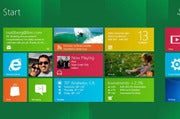
Windows 8 Metro interfaceWindows 8 Metro interfaceThat’s the promise of how Microsoft has billed its Metro interface, but we haven’t seen it in action. Yet.
The above is, in part, a pie-in-the-sky wish list. The multitasking and app sharing could pan out, as could the content ecosystem. But I’m concerned about where Windows tablets will fall in price and specs.
I do believe that Windows 8 tablets will face an uphill battle challenging on price, especially without subsidization (and I don’t mean false subsidies through carriers) or Microsoft offering a concession on how much it charges OEMs for the Windows RT operating system.
Jack Gold, an analyst at J. Gold Associates, theorized to Computerworld that, if Microsoft does announce a Windows RT machine, it will probably cost $600 to $800, the price tag most observers expect other RT tablets to carry, "unless Microsoft plans to take a loss on each device sold because they have to buy the same components as everyone else."
Gold said Microsoft would not ultimately be able to compete with Amazon on price since costs would be higher for an RT machine and because there is no clear pathway for Microsoft to recoup subsidies it might pay to attract consumers.
There's also a possibility that Microsoft may show off a reference platform on Monday as an example of what the Windows RT machine could do, Gold said. That would be the design that other manufacturers, like Asus, Lenovo, Acer and others, would implement.
However, Gold thinks that Microsoft would not want to compete with its own vendor ecosystem. "That makes about as much sense as Microsoft building PCs to compete with HP, Dell, and others," he said.

Redmond Still Thinking Inside the Box?

Finally, as for the specs, I think what we’ve seen so far indicates that PC makers are treating Windows tablets as they would other categories, and they’re not thinking outside of the traditional PC box.
This is the same kind of product planning reasoning that explains why it was Apple, and not a PC maker, who introduced the first laptop with a Retina display. And that kind of thinking could keep Windows 8 tablets from achieving their full potential.

Tuesday, June 12, 2012

Apple iOS 6 vs. Android vs. Windows Phone Comparison!!

Apple's World Wide Developer Conference (WWDC) kicked off today with the unveiling of iOS 6 for the iPhone and iPad. Apple is promising over 200 new features in the latest version of its mobile operating system, but only a few of them were highlighted in the keynote.

                                      
Download Sexy Girls Wallpapers, Click Hare

June is an exciting month for smartphone fanatics as Microsoft is expected to unveil the next generation of Windows Phone at an event next Wednesday, June 20 while Google is expected to reveal its plans for the next version of Android, codenamed "Jellybean."
While some of the features Apple announced today already exist on competing platforms, Apple is putting its own twist on these updates. For example, Siri, Apple's voice-activated virtual assistant, is even smarter now with support for sports, movies, and restaurants. Siri can also directly launch apps, but you still can't control these third-party apps with your voice.
Apple is also breaking up with Google Maps and launching its own Maps application with iOS 6. It includes local business information, Yelp integration, real-time traffic updates, and turn-by-turn navigation. Naturally, Apple has also added Siri integration to maps so you can ask questions along your journey such as, "Are we there yet?" or "Where's the next gas station?" Apple has also added a 3D/fly-over mode to its Maps application, which shows you detailed 3D models of buildings and landmarks.
 
 
These updates certainly give Microsoft and Android something to chew on. While both competing platforms offer voice-command support, those features are crude in comparison to Siri's artificial intelligence and natural dictation. Microsoft's Bing Maps could definitely use a revamp in the next version of Windows Phone as its turn-by-turn directions feature is quite clunky (you must tap your phone at each turn).
We'll be revisiting this comparison later this month as Microsoft and Google roll out new versions of their respective mobile platforms.