Recent Posts

Showing posts with label Tips and Tricks. Show all posts

Thursday, August 23, 2012

Improve Your Site's Search Ranking Using SEO!! Tips and Tricks!!

As any website owner knows, search-engine optimization—SEO—is a rapidly moving target. What worked well last week might work against you today. Hordes of website operators learned this the hard way earlier this year, when two key updates to Google’s algorithms took effect. Known by the cute code names of “Panda” and “Penguin,” these updates were designed to severely penalize websites with thin, weak, or duplicated content. The goal: To rid Google’s search results of content farms and spam blogs by using quality metrics, instead of merely relying on the old PageRank system to measure a site’s importance.
The end result has been to force webmasters to do what pros have been advising for years: Stop stuffing keywords into low-grade copy and focus on quality. Unique blogs, images, and video are all increasingly key in today’s Web world.
Of course, more and more scenery, so to speak, accompanies this mandate. Google+ might not yet matter much to most individuals, but it’s becoming more important to search engines, along with Facebook and Twitter links to content. How your site looks and loads on a mobile browser is also increasingly important, as search results are ever more accessed via smartphone.
All of that is merely prologue: If you’re not already working on all of the above, you’re far, far behind. For those already following this advice, now is the time to take a look ahead at what the next 18 months of SEO are likely to bring. We spoke to dozens of experts to get the skinny on SEO for 2013. Here are the top tips we discovered.

This Website Will Disavow Any Knowledge of Your Actions
How to Improve Your Site's Search Ranking using SEO
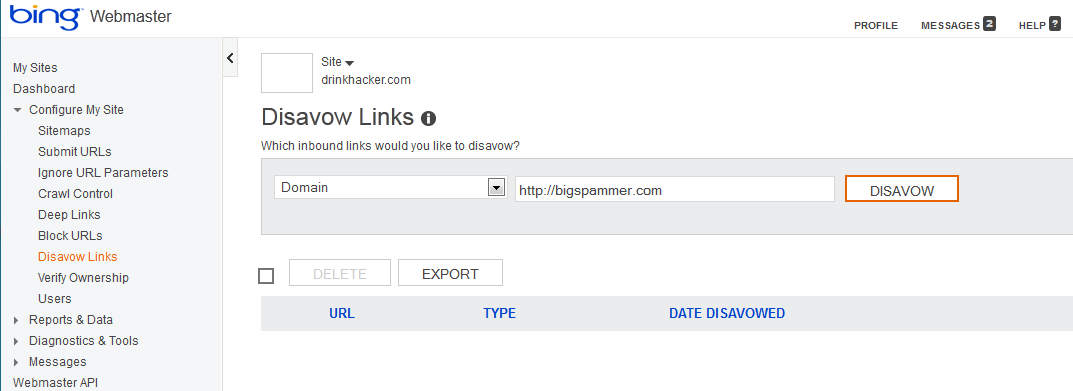
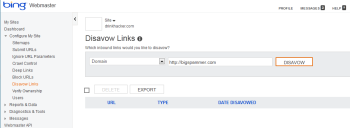
Use this tool to prevent Bing from penalizing your site if spammy sites link to it.What happens if someone links to you from a spammy website? It makes you look bad; in fact, search engines can deem that your site is in fact a spam site as well. Your site is guilty by association, even if you have nothing to do with the linker.
Bing has rolled out a tool in its Webmaster Tools that let you “disavow” links from such places. It’s largely self-explanatory. Just add a page or domain to the tool and click the Disavow button to tell Bing you do not approve. This may improve your site's position in search results, but almost certainly it will help to rid the Web of some of its spam. Google’s “disavow” tool is expected in the coming months.
Carson Ward of Distilled.net (one of several online marketing agencies whose experts we interviewed) says these "disavow" tools will raise a lot of questions for search optimizers. “Will site owners be more likely to use tactics that search engines frown on if they can simply turn and tell search engines to discount the spam they have created? Will search engines trust site owners to crowdsource spam detection, and should they? Google's implementation of a disavow tool will largely determine the future of Web spam.”

It’s Not Where They Link, It’s How They Link

Ryan Draving, CEO of CompeteLeap, stresses that machine-generated writing and “spinning” (rewriting or slightly changing someone else’s content to look original) will become useless or even detrimental to your website, adding, “Search results will begin to shift more and more toward brands, and away from websites built purely for SEO. Brands typically invest in the kind of quality content that generates strong links from, and engagement with, bloggers, other websites, and users on social media networks.”
Those incoming links are still critical, but Draving notes that over-reliance on exact keyword phrases coming into your site (like “Chicago emergency plumber”) will penalize you. Says Draving, “Keep less than 11 percent of external links coming to your website via exact keyword phrases. Google expects to see either your URL or your company name as the link text for the majority of your inbound links. So instead of asking every website to link to you with your favorite keywords ('DIY Internet Marketing'), allow them to use the text they want.”

Don’t Discount Yahoo

It’s long been a habit for website operators to forget about Yahoo, even though Yahoo and Bing combined still have nearly a 30 percent market share. But what happens now in the Marissa Mayer era? Will Yahoo rise again as a search leader? Kaysha Kalkofen, co-founder of tSunela, says, “Keep an eye on Yahoo's relationship with Bing, especially in the paid search space. If that evolves, the paid search market will open up again.”

Take the Credit
How to Improve Your Site's Search Ranking using SEO
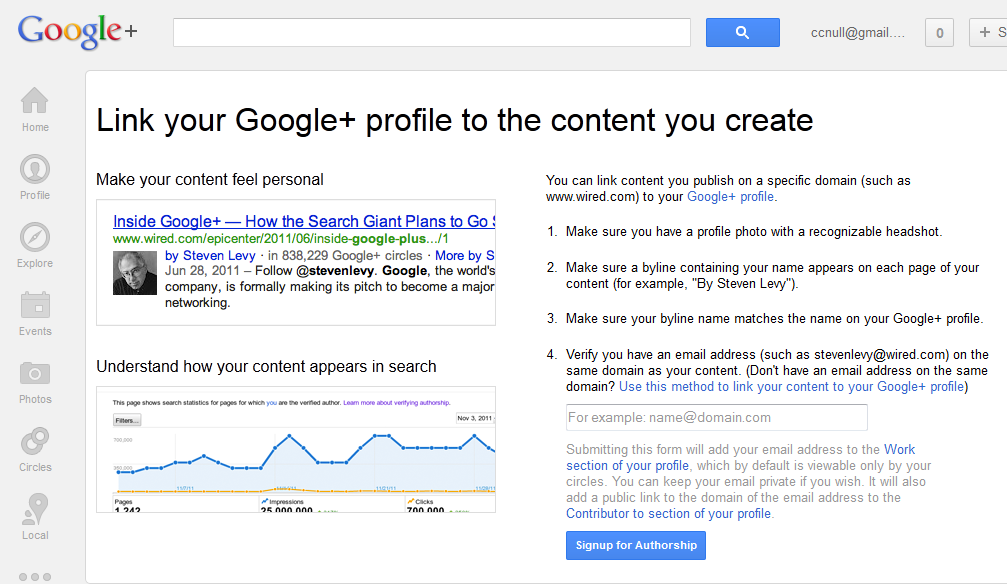
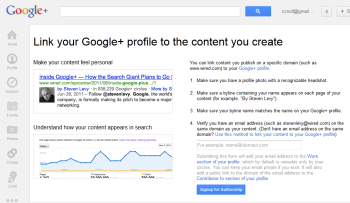
Author rankings could become more important than page rankings in the second half of 2013.Have you ever done a Google search and noticed head shots next to a few of the posts at the top of the results? This is part of an experimental program within Google designed to link authors with published content, regardless of where that content lives.
Jon Payne, President and Founder of Ephricon Web Marketing, explains how “AuthorRank” works: “It’s generally the case that most significant websites have many different authors that contribute to their content. Google is looking at how to trust links from one author versus another, and weight them differently. We see AuthorRank replacing PageRank most likely in the latter half of 2013. Businesses must set up the ability to claim authorship of their content, but the process is pretty easy and (not surprisingly) is mostly handled within Google+.” To get started with the process, get your Google+ profile up to snuff (you must have a recognizable face-shot photo as your profile picture) and check out plus.google.com/authorship.
How to Improve Your Site's Search Ranking using SEO

Seek Out Snippets

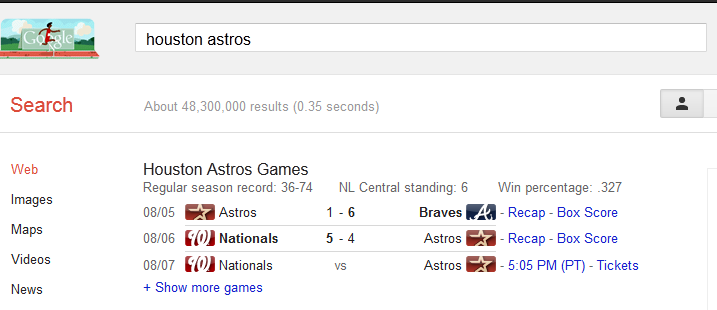
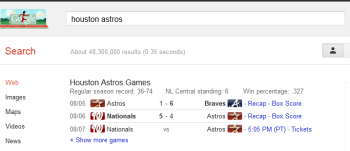
Structured information, known as "rich snippets," can help your site float to the top of search results. In related news, you may also notice that when you search Google, little tidbits of information float up to the top: Search for a baseball team, for example, and their current record and recent games will appear first. These are called “rich snippets,” a form of structured information that can get your content to the top of search results.
David Erickson, publisher of the e-Strategy blog, says, “Webmasters should take a look at their search results and those of their competitors to see if any of the listed sites are accompanied by rich snippets. If so, I'd take a look at the type of structured information being included in those results and see if you can include such information on your own site. If you're using WordPress, there are often plug-ins available that help ease the formatting of such information.”

Publish More Than You Think You Should

The days of weekly updates are over. Google is increasingly favoring fresh content, and that means publishing not just daily but multiple times per day if possible. Nicholas E. Kinports, Digital Strategy Lead of lonelybrand, says, “Digital marketers should create and stick to an editorial calendar that provides for new content several times per day that is unique and industry-focused. That content should be woven throughout Web and app pages to create a dynamic ecosystem.”

How to Improve Your Site's Search Ranking using SEO
Updating your site frequently is one sure way of boosting your search engine ranking.
This makes logical sense in the Twitter era, says Josh Gross, SEO specialist with Coalition Technologies, who adds, “A website that more frequently updates its content is likely to be more relevant then a website that only makes periodic updates.”
Google Gets in the Shopping Game

Google Shopping has long been a small yet significant way for merchants to drive traffic directly to their products without having to buy an ad. That’s about to change: Google Shopping is going pay-for-play (via a system much like AdWords), which means that the days of free product links are coming to an end. It’s too early to say how expensive this might end up being, but for now, says Jeff Soukotta, Founder of Adaptise, e-commerce site operators should prepare to become familiar with the changes and start thinking about budgets.

Speed Matters

In the quest to make websites more feature-filled and social, website operators often saddle their sites with scripts and plug-ins that take their toll on how quickly the site loads. A slow site isn’t a monumental thing, but users hate sites that won’t load. As a consequence, Google is increasingly becoming interested in the topic, and it’s likely to play a more important role in rankings down the line. As Tom Hughes-Croucher, Principal of Jetpacks for Dinosaurs, sums it up, “In effect, Google isn't just looking for the most keywords per landing page, it is looking for the best landing page experience for users.”
Saturday, June 9, 2012

Another Breach Reveals Weak Passwords: Protect YoursSelf!!

It has been 18 months since more than 188,000 passwords for subscribers to Gawker were snatched by hackers and posted to the Web, but consumers don't seem any more inclined to protect their passwords now than they were then.
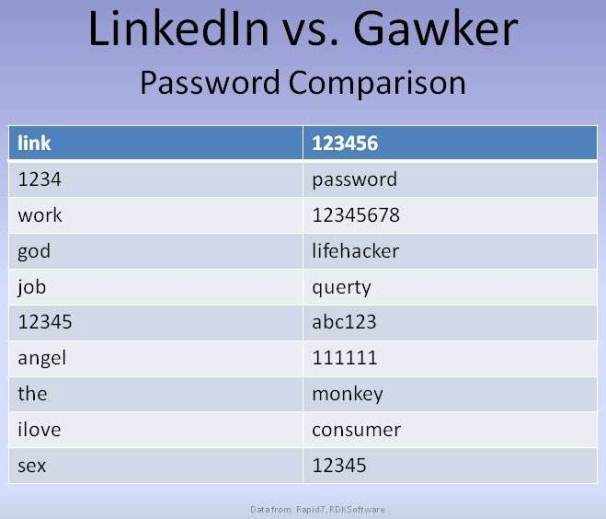
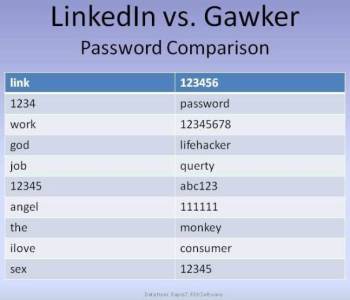
An analysis of the most common passwords found among the millions posted to the Net after digital desperadoes clipped them from LinkedIn reveals similarities between them and the favorites of Gawker users.
For example, consecutive numbers are popular with both groups. Two of the top ten passwords for LinkedIn members were 1234 and 12345, while three passwords in the Gawker top ten were 12345, 123456 and 12345678.
Gawker's top ten also had a non-consecutive number, 111111, and an alpha numeric consecutive, abc123. Other top ten passwords for the site were less obvious, but not very strong either: lifehacker, monkey, and consumer.
LinkedIn members tended to stay away from old standbys of lazy password pickers like password and qwerty -- both in the Gawker top ten -- and focused on business (job and work were in their top ten), sex (sex and ilove) or religion (god and angel).
It's obvious that really short passwords were acceptable to LinkedIn, as evidenced in "the" making its members' top ten list. Using the name of a site for a password is also a common practice among hasty password pickers. But we all know how busy business people can be and apparently many LinkedIn members didn't have time to complete the name of the site in the password field and just used "link" instead.
If you're concerned about whether or not your password was compromised in the LinkedIn breach and haven't been informed yet by the network about it, you can check out your password at LastPass or LeakedIn.
If you're looking for tips on creating a strong password, there are plenty of folks on the Net that can advise you on that subject, including Microsoft and Google. See also PCWorld's tips at "Create a Different, Secure, Easy-to-Remember Password for Every Site.")
If you're wondering how strong the passwords you're using are, you can test them at How Secure Is My Password? For example, a password like 123456 would be cracked almost instantly.
By the way, if all this information about strong passwords makes your head hurt, How Secure has a companion site that will create for you strong passwords like 4shkenaz!Sp!tt!ng, which would take a desktop PC 14 quadrillion years to crack.

Friday, June 8, 2012

Why You Don't Need to Work in an Office Again !!

How to Ditch Your Office for Good The virtual workforce. Telecommuting. Mobility baked into everything. The cloud.
Nearly all the big trends facing small companies doing business in the '10s speak to the increasing irrelevance of one of the hallmarks of the working world: the office.
We’ve all worked there, whether we had an individual office with a window and a door, or just a small patch of carpet in a sea of cubicles. And generally an office isn’t a bad place to spend the day: It has climate control, an IT department to fix problems, and sometimes even free coffee. But most of all, offices offer camaraderie, and the chance for employees to have impromptu meetings and bounce ideas off one another.
Unfortunately, offices are also terribly, terribly expensive. Even in the down economy, real estate in a prime area such as midtown Manhattan can cost $50 per square foot per month and up, and that’s not including utilities, furniture, and build-out expenses.
So maybe you don’t need an office after all. With a largely mobile workforce that is often working from home, a car, or a nearby café, what’s the point of stocking a fridge that no one will ever use? Why not ditch the office for good and go 100 percent office-free?
Many people already do this, but if your job involves more than just tapping away on your laptop and making the occasional phone call, running a company without an office can be challenging.
Here are the big issues--and how to address them.

Dealing With Employees

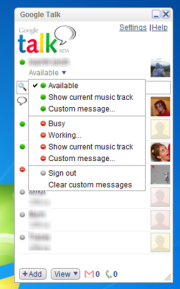
Instant messaging services, such as Google Talk or AIM, are great tools for communicating with--and keeping track of--far-flung employees.
How to Ditch Your Office for Good
One of the biggest fears that many employers have about telecommuting is the worry that remote employees won’t do their jobs. Leave staffers alone at home all day, and they’ll just watch TV, do the laundry, or play hooky, leaving you to foot the bill for a day off. Those concerns seem to be misplaced, however. In fact, some studies have shown that employees who have more flexibility (including telecommuting options) work harder and longer than if they were at the office. This is why many employers are happy to outfit their staff with smartphones and laptops: A mobile device makes it incredibly easy to take your work home with you.
Of course, managing remote employees isn't always smooth sailing, and it's quite possible that your key people will decide to take a long lunch when you need them the most. The solution is largely one of setting expectations. Even if your employees are never in the office, they need to know that you expect them to act as if they were. Set working hours and a specific lunchtime if necessary, and require your staff to stick to the schedule. This policy should be in writing, either in a person's offer letter or as part of your employee handbook. If employees can't stick to the schedule for some reason, tell them that they need to let you know well in advance. An office employee wouldn’t think of leaving for a doctor’s appointment without notifying the boss, and there’s no reason a remote worker should do so either.
Making the rules of remote working crystal clear should mitigate most management problems.

Communication

Another big challenge with remote work involves communicating. You can’t just walk over and drop a file on a junior staffer’s desk or round up a few people for a quick meeting. So how do you keep in touch, and keep everyone on the same page?
Instant messaging has been the communications medium of choice for most virtual or far-flung organizations. Choose a platform, and require all staffers to sign in to their account at the beginning of each workday. If employees aren’t going to be available for a while, whether it’s for lunch or other duties, have them update their IM status to reflect where they are and when they’ll be back.
How to Ditch Your Office for Good
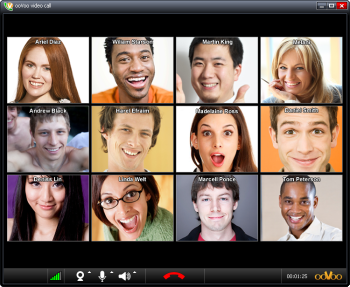
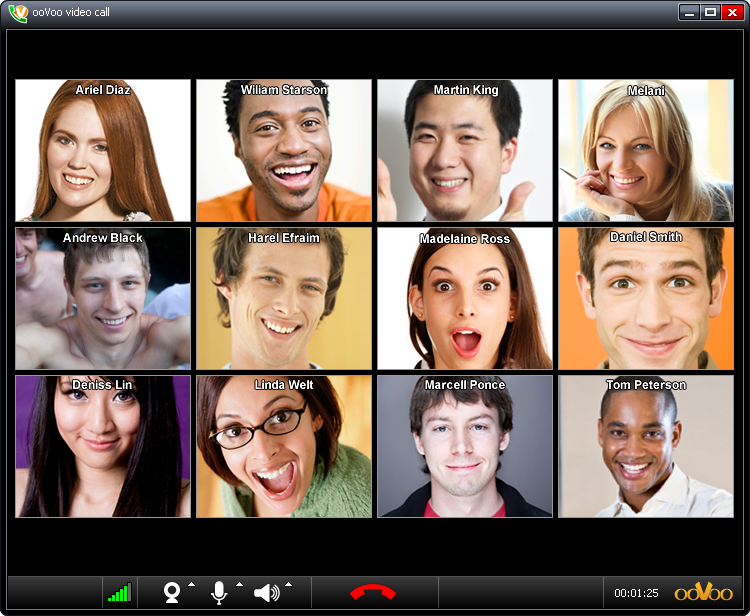
OoVoo offers an inexpensive videoconferencing service for as many as 12 participants; in fact, it's free if you can tolerate ads.Of course, having a workable phone network is critical too. Although many people have forsaken landlines these days, if employees’ cell phone reception isn’t perfect, they’ll need to change networks, acquire a VoIP system, or even invest in old-school wires. As a small-business owner, you may have to pay for some or all of this expense.
If you want to get really advanced, you can look into having group video chats with your staff. OoVoo supports video chats with up to 12 participants (free with ads; $3 per user per month without ads). Skype Premium supports up to 10 simultaneous participants for $5 per user per month. Just make sure everyone has a very fast network connection.

Thursday, June 7, 2012

LinkedIn Hacked : What You Need to Know ?

LinkedIn users awoke to a nasty surprise today as word spread that hackers breached LinkedIn's servers and leaked passwords for nearly 6.5 million user accounts. LinkedIn didn't acknowledge the hack until midday Wednesday afternoon, when the company finally confirmed that a certain number of member passwords had indeed been compromised.

Who's Behind the Hack?


A user on a public Russian forum is taking credit for the hack, but no one has been able to verify if he or she is really behind this whole mess.

When Did the Hack Take Place?


We don't know when the hack took place, but according to Ars Technica, the hackers posted the data over the course of three days.

What, Exactly, Was Released?


The user posted approximately 6.5 million hashed passwords to the forum, and according to security software firm Sophos, at least 60 percent of those passwords have already been cracked. Thus far no usernames have been released, which either can mean that the hackers didn't manage to download them or they are keeping the usernames for themselves. Either way, that's a lot of leaked private data.

So Is My Account Compromised?


Yes and no. The passwords were all hashed using SHA-1 and so they won't be readable outright. Unfortunately SHA-1 isn't entirely foolproof and can still be cracked through the use of brute-force attacks. These would require the attacker to insert several million words or phrases into the SHA-1 algorithm and compare the results against the list of leaked passwords. Since we don't know whether or not the hackers have usernames as well, it's best to assume the worst and consider your account hacked.

What's the Worst That Can Happen?


For one thing, hackers would have control of your account and contacts. If you use the same username and password combo on other sites, then there is a risk that those accounts are now compromised as well.

What About LinkedIn Pro Users? Do I Need to Worry About My Credit Card Info?


LinkedIn hasn't said anything about whether any financial information associated with LinkedIn pro accounts was compromised, so we don't yet know for certain. In either case, you should always keep a close eye on your financial statements to make sure that nobody is using your accounts without your authorization.

What Can I Do Protect Myself?

 In a blog post, LinkedIn says that it will email all the users whose accounts were affected by the hack and give them instructions as to what to do next. The company warns that you should not click on any email links asking you to change your password, as that could be someone attempting to steal your information.


If you used the same password or username on other websites (which you really shouldn't do), it might be a good idea to good ahead and change those for good measure. If you need help in building a better password, check out our comprehensive guide on the matter.

For still more tips, see our overview of what to do if you ever become a victim of a data breach. So change your passwords, don't click on any suspicious links, and stay safe out there, folks.

Wednesday, May 30, 2012

Coolest Android Accessories Around !!

These days, Android is more than just a platform: It's a club, a culture, a way of life. Android fans are into it, man, and they're itching to show off their mobile-minded pride.
From gadgets to knickknacks and clothing to jewelry, there's no shortage of eye-catching Android swag out there. Here are some of the most interesting, unique, and memorable items around.
(Note: Prices and availability are accurate as of the writing of this story and may change over time.)

Safe (2012) BRrip 185Mb - Watch | Download [10 Single Small Exclusive], Click Hare

1. Squishable Android
The 18 Coolest Android Accessories Around
What better way to show your love for Android than with a giant huggable green robot dude? The Squishable Android takes the familiar Android mascot ("Bugdroid," as he's officially known) and puts him in a soft plush form that's sure to grab attention and affection. If you really want to get wild, try using him in place of your desk chair; I promise he won't mind.
Available from Squishable.com for $39; also available in smaller Mini ($19) or Micro ($8.50) editions or as a humongous bean bag ($138).

2. Android Cookie Jar
The 18 Coolest Android Accessories Around
I don't know about you, but this ceramic Android cookie jar combines two of my favorite interests: Android and baked goods. (For some reason, no one's asked me to review a cookie yet. I need to work on that.) The Android Cookie Jar is 9 inches tall with a 6-inch-deep belly for storing all your sweet treats. Just don't blame me if you gain 20 pounds after putting him on your desk.
Available from GoogleStore.com for $35.15.

3. Honeycomb Speaker
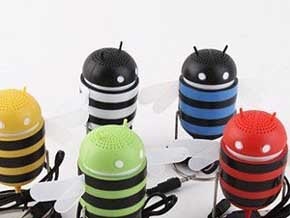
The 18 Coolest Android Accessories AroundHoneycomb may have been a transitional version of Android, but its robot-bee logo remains one of the platform's most memorable visualizations. Now you can show your Android street cred with a portable Honeycomb Speaker. The speaker is a winged Honeycomb bee with a USB connector. You can get it in red, orange, blue, white, or green; painful stinging sensation not included.
Available from BigCartel.com for $15.

4. Andru USB Phone Charger
The 18 Coolest Android Accessories Around
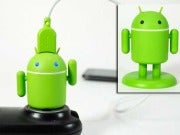
One of the most innovative pieces of Android swag around, the Andru USB Phone Charger doubles as a desk trinket and portable charger for almost any Android phone. Andru stands at attention (you can position his arms however you like); when your phone needs juice, all you do is pull his feet out of the base to reveal a standard electrical plug, then attach the microUSB cable into his head and hook him up to an outlet. Andru's eyes even light up blue when he's charging and white when he's in standby.
Available from PowerByGen.com for $25.

5. Hungry Android T-Shirt
The 18 Coolest Android Accessories Around
Google liked this illustration enough to feature it front and center at its 2011 I/O developers' conference; now, you can wear it proudly on your very own person. The Hungry Android T-Shirt, sold directly by the artist, shows the now-famous image of the Android robot munching on an apple over matching green material. Mmm...the symbolism is delicious.
Available from Zazzle.com for $22.25.

The 18 Coolest Android Accessories Around6. Yodaroid T-Shirt
Combine Android with Yoda, and what do you get? The ultimate geek treasure, that's what. May the (open) source be with you.
Available from RedBubble.com for $24.54.


7. Glow in the Dark Android Keychain
The 18 Coolest Android Accessories Around 
Don't let darkness cloak your Android adoration. The Glow in the Dark Android Keychain keeps your favorite green robot in sight day and night. A warning, though: It does require a little exposure to light each day in order for its glow-in-the-dark abilities to activate. Consider it extra motivation to emerge from your dimly lit computer cave.
Available from ThinkFunToys.com for $6.99.

8. Android Light Switch Cover
The 18 Coolest Android Accessories AroundWhile we're on the subject on darkness, have you seen the official Android Light Switch Cover? Just take off your old switch plate, screw this one on, and get a nice bit of Bugdroid every time you flick the lights on or off. (Hint: Consult your significant other before installing in the bedroom. Trust me.)
Available from GoogleStore.com for $5.10.

9. Android Mini Collectibles
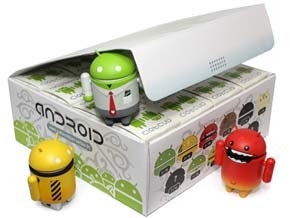
The 18 Coolest Android Accessories AroundYou can't talk about Android swag without mentioning Andrew Bell's awesome Android Mini Collectibles. The figurines are produced in partnership with Google (and are adored by many a Googler -- go figure). The collectibles have taken on tons of different designs over the years, and with new ones coming out every few months, you'll never run out of fresh little friends to acquire.
Available from DeadZebra.com and other retailers; prices vary.

The 18 Coolest Android Accessories Around
10. USB Robot microSD Card Reader
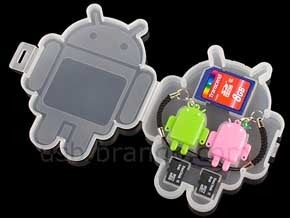
It may not have the word "Android" in its name, but it's abundantly clear that the USB Robot microSD Card Reader is made with Google in mind. Each reader comes in an Bugdroid-shaped case with two Bugdroid-shaped keychains inside. Pop off the keychains' heads, and you'll find standard USB connectors. On the other side sits a slot for any microSD card; slide one in, and you've got a fully functioning card-reading-and-writing accessory in your hand.
Available from Brando.com for $9 (pack of two).

11. Exploded Andy T-Shirt
The 18 Coolest Android Accessories AroundA true Android classic, the Exploded Andy T-Shirt dissects Mr. Droid to show off the gears -- and, yes, the heart -- inside. The eye-catching design comes from artist Garry Booth and is a favorite of Android fans worldwide.
Available from ExplodedAndy.com for $15.


12. Android Family Decals
The 18 Coolest Android Accessories AroundScrew the generic stick figures. If you're gonna put family stickers on your car, why not let a robot represent your loved ones? Your kids will thank you later.
Available from AndroidStickers.com for $9.95.


Friday, May 25, 2012

How to Troubleshoot Your PC: A Hypochondriac's Guide !!

How to Troubleshoot Your PC
According to the universal law articulated by Edward Murphy(we're not closely related), anything that can go wrong will go wrong. And when the wrong thing happens to your desktop PC, it can plunge you into a nightmare of unknown but seemingly malevolent forces. It's pretty easy to tell that something has gone wrong with your system. What once was fast is now slow; what once worked is now blue-screening; what once smelled okay or sounded fine now imparts the odor of overheated plastic or the screech of grinding metal gears.
Often, you have no idea how to cure what ails your system--or how severe the damage might be to your data or your hardware.
It's difficult to solve all possible system problems via the written word, as individual situations may vary just enough to make generalized advice problematic. However, if you're looking for some generally useful ideas on why your computer is misbehaving--and some potential fixes for certain common and unpleasant problems you might encounter--look no further than this handy troubleshooting guide to ten all-too-frequent system malfunctions.
Remember: If it looks like a software issue, the nuclear option is to save your data, wipe your drive, and reinstall your operating system. If it's a hardware issue, a trip to the store might be in your future.

My Hard Drive Is Making Grinding Noises

Uh-oh. There are several reasons why your hard drive might be making odd noises: The heads might be bumping the spinning platters, or the heads might be unable to find the data they're looking for (due to disk errors or a problem with the head itself), resulting in an audible clicking sound as the disk resets and tries to read the data once again.
Even if you know nothing else about hard drives, you need to know this: Unpleasant noises (including the infamous "Click of Death") are an early sign that your drive is nearing the end of its life. It could die in 5 minutes or in five weeks. So back up your files to external storage as soon as you can--before the files become unreachable--and start scanning your favorite retailers for deals on drives.

My Computer Takes Minutes to Respond When I Click Something

System Configuration screen; click for full-size image. 
Typing 'msconfig' into your Run window yields a list of applications that launch at system startup.This symptom is something of a wildcard. Your system might be suffering from limited resources, particularly memory, or from too many apps running concurrently (as evidenced by tons of icons in your tray). The issue tends to arise more often with 32-bit operating systems than with 64-bit ones. Check your System Properties screen (reachable via your PC's Control Panel) to confirm that the amount of memory listed is correct.
Launch msconfig (type msconfig into your Run window, and press Enter) and examine the list of apps that launch as Windows starts up. Disable unnecessary apps and services; perform a Google search of any unfamiliar names to see whether you can safely remove them.
Device Manager screen; click for full-size image.In Windows' Device Manager, look for unknown devices; if you find any, install their drivers.Another possibility is that your system may be suffering from a driver conflict: Consider uninstalling drivers in Windows and then reinstalling them for your essentials (video card/sound card/motherboard/connected devices); or check Windows' Device Manager for any unknown devices, and then install their corresponding drivers.
Finally, you can try rebooting your computer into Safe mode and subjecting it to a scan for viruses and other malware--it never hurts!

During Shutdown, a Message Appears That Says 'Other People Are Logged On to This Computer'

This situation arises when you have multiple user accounts on your system and someone--for whatever reason--switched out of one of them but didn't log off before you logged in to your account. To clear up the misunderstanding, switch back over to that account by clicking the Start button and then clicking the arrow to the right of the lock icon in Windows Vista, or the arrow to the right of the 'Shut down' button in Windows 7. Click the active account, log out, and then resume the shutdown process from your main account.
Another option is to press Ctrl-Shift-Esc to access your Task Manager and then to click the Users tab to see any other accounts that are logged in to your system.
Another possibility is that Windows could be referring to you as "another user," if you are logged in to your system but are trying to shut down your PC from your logon screen.

Beep Codes Sound While My System Is Booting Up

Diagnostic LEDs; click for full-size image.
Some motherboards that lack beep codes instead have diagnostic LEDs that perform a similar function.Most motherboards provide some kind of auditory feedback to help identify a crippling issue that you're having with your PC--assuming that you've attached the requisite speaker to your front-panel headers (if your motherboard doesn't come with one built in). Depending on your machine, one beep might mean, "All is well!" A number of sequential long beeps might indicate that your video card is improperly seated in its PCI slot. One long beep followed by nine shorter beeps might signal that your BIOS has a ROM error and that you should probably clear the motherboard's CMOS.
Easy enough, right? Unfortunately, you'll need to have a second computer on hand to do a bit of online research: Not all motherboards use the same beep codes, and the manual that came with your part or system may not list the codes that it uses.
Worse, some motherboards lack beepers or speakers altogether, though they usually do have internal connectors for speakers. Such motherboards usually have diagnostic LEDs on the motherboard that provide the same information, but you'll have to open the case to see them.

My System Won't Start at All, and Pressing the Power Button Has No Effect

Power supply switch; click for full-size image.Some power supplies come with an on/off switch. Don't forget to flip it on.Hello, hardware issue. Did you just finish working on the inside of your system? Did you remember to flick the switch (if it exists) on the back of your power supply to turn the juice for your rig back on? Did you turn on the surge protector or power strip that your system may be plugged in to?
Motherboard power button; click for full-size image.If your system's motherboard has a power button on it, press the button to see whether it will start your PC. If those items check out, try reseating your cables in case something internal got bumped out of place or left not-all-the-way connected. If your system is still unresponsive, try removing and reconnecting your video card, your RAM, or even your CPU and cooler.
Your power supply is another possible culprit. Use an inexpensive power supply tester (these run $10 to $20) to verify that your power supply is working. And remember to check the switch itself to see whether it is properly connected to the motherboard's front-panel headers. I've seen the tiny connector that attaches the power button to the motherboard work its way loose, for example. If your motherboard has a power button on it, press that button to see whether it can start your system.

Saturday, May 12, 2012

Is Your WiFi Slow? Fix It Now, Get Fast !!

The first 801.11ac chipsets are coming soon, but 802.11n is likely to stick around for many years to come -- both in the business world and our homes. Unfortunately, the 300Mbps (megabits per second) that the n-standard promises rarely delivers anything even close and proves to be a massive bottleneck in the days of 50/100Mbps (or more?) broadband connections, 1080p video streaming, massive backups and so forth. On the business side of things, even menial tasks such as remote desktop or real-time collaboration suffer from a poor Wi-Fi-connection.
[ 8 free Wi-Fi security tools ]

Download The Avengers 2012 TS, Click Hare
In some of our tests, it wasn't uncommon that a 802.11n connection with devices only a few meters apart (and with only wall in between) can fall back to a mere 2-15 Mbps. And here's where you run into problems:
· 0.5-2 Mbps: Is enough for all your basic chatting and mailing services, though it will slow down some content-heavy websites -- especially if you've got a 20+ Mbps downpipe.
· 4-5 Mbps: Enough for handling all websites and basic video streaming.
· 20+ Mbps: This is the minimum you need to even consider HD streaming. Even though, the typical bitrate of a 720p iTunes TV show is 2-6Mbps, your router needs to compensate for dropouts, other connected clients and prebuffering.
· 50+ Mbps: Enough for 1080p movies and over-the-air backups.
If you're sick of slow Wi-Fi speeds but hate to go back to Ethernet, we've got a handful of tips that'll help boost weak signals.
1. Check your router's eco settings
Some routers are set up with their "Power savings" mode on by default. The goal: save a few milliwatts. Unfortunately, this commendable approach reduced bandwidth disproportionately. Although my trusty Linksys WRT610N router wasn't set up with unnecessary power savings in mind, I turned on its low power modes just to see the effects:
If you value bandwidth over minimal power savings, check out the router's setting and look for entries called "Transmission Power" or various Eco modes. Turn them OFF. Also, do check if your router sports some sort of "Automatic" transmission setting. You may want to turn it off and go "100%" all the time.
2. Overcome the laws of physics
Unfortunately, the laws of physics sometimes stand in the way of proper wireless bandwidth and signal strength (where can I file a complaint?). First of all, the distance between your router and the wireless adapter is a more relevant factor than you might think. Here's a rule of thumb: Just by doubling the distance between router and client you can expect throughput to shrink to one-third of its original value. A wireless repeater, which will set you back $20-$100, should boost your signal noticeably.
In addition to distance, the other wireless signal killers are the objects and elements that are in the way of throughput, namely water and metal. Water acts as a blockade for 2.42GHz signals, so it may be wise to get all objects in your home or office that contain any form of liquids out of the way (this includes radiators and flower pots -- no kidding!). Also make sure that metal objects are not in the way of your router and your clients: this goes for metal furniture as well as metal boards, tech gear, etc.
Keep in mind that smooth and shiny surfaces are prone to reflecting signals and thus either creating drops or massive signal problems.
3. Upgrade your router's antenna
Packet loss and weak throughput is often caused by weak antenna design. Good news: You can replace the built-in antenna of your router with something much more powerful. It's a bit of a hassle, but it may make the difference between a slow connection (or none at all) and a speedy line to your router!
Depending on your setup, you'll want to go with either an omnidirectional antenna that scatters the signal throughout your home or a directional antenna if most of the devices that are in need for good throughput are in one room. Probably the best and most extensive guide for replacing antennas is Binary Wolf's.
4. Figure out the best spot for your router
Use a Wi-Fi heatmapping tool to measure the impact of distance, frequency changes and building structures on signal strength. Two tools that are great for this job are NetSpot for Mac and Heatmapper for Windows. Both tools allow you to track Wi-Fi coverage in your office or home. In this example, we're going to show you how NetSpot works: Once you've installed the software, type in a new "Site Survey" name and hit "Blank Map". You can also select a floor plan of your home or office and get an exact map. If you're more creative, I suggest you select the "Draw Map" feature and start drawing your own floor plan. Next, define the scale by determining the exact distance between two spots. Hit "Let's get started" and just walk around. Click the spot on the floor plan that you're currently standing in:
Obviously, the more points you scan, the more exact your Wi-Fi heatmap. Once you're done, you end up with a map that shows you not just the signal strength but also the throughput of your Wi-Fi network.
5. Varying CPU frequencies and their effect on wireless signals
Your computer's motherboard is also working in the "Gigahertz" spectrum. That "noise" is being picked up by your built-in Wi-Fi transmitter. Unfortunately, the higher that noise is, the more likely it is for your wireless adapter to lower bandwidth automatically (by lowering the link-rate and avoiding frequency interferences). As CPUs these days clock dynamically, the Wi-Fi adapter needs to constantly adapt the link rate which not only causes a variation in Mbps but may also be the cause for dropped connections. Especially on laptops, the Wi-Fi adapter is often built close to the memory and CPU bus, which is a major source for problems.
Of course, this all depends on the design of your Wi-Fi adapter, but if these symptoms sound familiar you might solve this issue by getting an external adapter. Some of these adapters, such as my Linksys adapter, even have a little stand that's connected via a long USB cable. Putting that kind of space between the Wi-Fi adapter and your CPUs noise is likely to help a lot. Of course, that's not too handy when you're traveling, but at home it's a viable option. Typical Wi-Fi adapters such as the Linksys AE2500 (802.11n dualband) or the MSI US310EX will set you back between $20 and $40 and they're worth every penny.
6. Firmware or driver issues
An easy, yet often forgotten piece of advice: Make sure that your router's firmware is up-to-date -- especially if you've purchased a new one. Expect bandwidth, feature set and resiliency to signals to increase with the first few firmware updates. (My Linksys router could only deliver full bandwidth to my living room after the upgrade.)
Also make sure that the Wi-Fi adapter (either external or built-in) is always up-to-date. Dropouts, standby issues, low performance may be gone in the next 0.1 release of your adapter's drivers. Although the frequent driver delivery via Windows Update has gotten better in recent years, it rarely fetches you the latest and the greatest drivers. Instead, do this...
The first place to hit for updates is the manufacturer's support pages. But if their driver area is not well maintained, you can go the chipset maker's website. It's not uncommon that the chipset of each Wi-Fi adapter was just bought and rebranded. For example, my external Linksys WUSB 600N adapter houses the popular RT2870 chipset manufactured by Taiwanese manufacturer Ralink. It's a perfect example for why going straight to the chipset maker is always a smart move.
Just head over to their Support/Download pages, enter your e-mail address and get the drivers.
To figure out which chipset you've got, it's a good idea to check the specification sheet of your Wi-Fi adapter. The Debian Wiki sports a list of well-known Wi-Fi chipsets.
7. Choose the right channel
The day your router is set up, it automatically detects the least crowded channel and makes that its default. However, with the arrival of new neighbors or offices nearby, the situation may change quickly: All of a sudden, one channel may be used by a handful of routers while others are deserted. InSSIDer is your little helper: The tool analyzes the entire Wi-Fi spectrum and gives you details about your home network as well as channel usage.
I was surprised to see that I was sharing channel 1 with four other routers. Not the most ideal situation. As channel 9 has not been used, so far, I decided to jump on this one and was able to improve latency as well as throughput noticeably.
8. Use your router's 5GHz network
The 2.4GHz frequency is crowded. Not just with neighbors using the same frequency, but also baby monitors, cordless phones, microwave ovens and more. Modern 802.11n routers offer "dualband", which means they're sending two network signals: One at 2.4GHz, and one at 5GHz, which is far less crowded and offers more channels. So why not make the jump to 5GHz and enjoy a less crowded Wi-Fi frequency at higher speeds? Well, unfortunately, many device makers thought it was a good idea to save some pennies on the Wi-Fi chip and go only with the 2.4 GHz receiver. This includes all portable gaming consoles and also a slew of Android phones, all Apple iOS devices and Windows Phone. Here's my advice: Activate both networks and connect the mobile devices to the 2.4 GHz network. Just enable the 5GHz network for your laptops and desktops.
9. Limit your router's frequency band
Sometimes you can't have the luxury of choosing the 5GHz frequency band or selecting a "lonely" channel. In such cases, it may be worthwhile to limit your router to sending out signals at intervals of 20MHz. This might reduce overall throughput a bit, but it will give you a stronger signal with less dropouts:
10. Benchmark your connection the right way
There are a lot of Wi-Fi monitoring tools around to measure the impact of all the tips we just gave you and spit out bandwidth values. However, none of them come close to the accuracy of iPerf. This tool has a client for the laptop/PC you're about to measure and a server tool that sits on a PC directly connected to the router. By having analyzers on both ends, you know exactly how fast your Wi-Fi actually is.
My advice: go through your space and try out different locations for both the router and the clients. The heatmapping tools should give you a good indication of the best spot.


Sunday, April 29, 2012

Protect Your USB Drive With Password !!

Lock Your USB Drive With Password


USB Flash drives or Pen drives are  one of the easiest way to transfer data from one computer to another. But what happens when you lost your USB drive which has some important files which you don’t want to share. Or forget your USB on your office desk and worried about the data that you save on your USB pen drive. Now you can protect, secure and Lock your USB drive with password. All you need a free USB security app USB Flash Security, which allows you to protect the data inside your USB flash drive with a password.
There are so many ways which allow you to secure your USB drive with these type of situation, but today we come with a free app USB Flash Security. And yes always Protect Your PC from USB Viruses with these tools. Now come to the USB Flash Security, just download the app on your Windows PC and install the app.
After the installation a new dialog box appears on your Windows screen asking you to connect the USB flash drive to the computer. Now connect your USB to the pc to install the USB Flash security in your new USB Flash drive, it is automatically recognized by your PC and give you all the details about your USB Volume, Free space, and Drive information. Now the app will format all your USB data first time, so be sure you don’t have any important data on the USB Flash Drive.
USB Flash Security

USB Flash Security
After the installation the app will ask you to set the password for the USB flash drive, and choose a hint for the password in case you forget it. Click OK, now your USB drive is protected with the security feature, once you remove the USB from the PC your Flash drive is automatically get locked with the password.
The application has both free and paid version and available for both 32-bit and 64-bit versions of Windows XP, Windows Vista, Windows 7 and Windows 8. All in all, USB Flash Security is a simple and effective solution to lock your USB Flash Drive. We strongly recommend it to all users. Also read our previous article about How to Repair, Fix & Format USB Drives here.

Download USB Flash Security

For More Click Hare

Download Sexy Girls Photos, Click Hare