Recent Posts

Showing posts with label Smartphone. Show all posts

Thursday, August 23, 2012

New iPhone Expected to Hit Store on Sept. 21!!!

New iPhone Expected to Hit Store Shelves on Sept. 21Apple fans anxious to know when the next iPhone is coming out may want to circle Sept. 21 on their calendar. That is the date when Verizon Wireless employees will begin a vacation blackout, lasting through Sept. 30, a “trusted Verizon employee” told TechCrunch. Earlier rumors have said that Apple will announce its next iPhone on Sept. 12, and release the new handset roughly a week later.
If the reports are true, Apple will follow a pattern similar to last year, when it announced the phone mid-week, and released it on Friday of the following week. Apple also put up the iPhone 4S for online pre-orders a week before launch last year, so we may see a similar timeline for 2012's new iPhone.
Although a September launch for the next iPhone would come less than a year after 2011's iPhone 4S, Apple is already feeling the effects of not having a new handset on store shelves. Last quarter, the company missed analyst estimates, and partly blamed anticipation for the next model. (Even so, iPhone sales grew 28 percent year-over-year.)

What's in the Next iPhone?

New iPhone Expected to Hit Store Shelves on Sept. 21
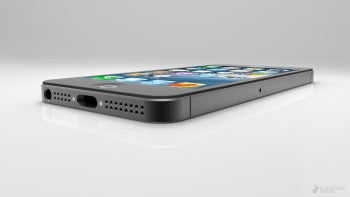
As usual, Apple isn't talking about the new iPhone yet, but numerous reports have claimed that it'll have a 4-inch display, instead of the 3.5-inch screen found on every iPhone to date. It may also support 4G LTE networks for faster data speeds, and sport a smaller dock connector that could cause some accessory headaches. Near-field communications may debut in the next iPhone, allowing tap-to-pay features at retailers, but this rumor seems less likely than the others.
The next iPhone will also run iOS 6, the latest version of Apple's mobile operating system. New features in iOS6 include turn-by-turn navigation, photo and video attachments in the Mail app, a do-not-disturb mode for Notifications and an app calleld Passbook that stores coupons and tickets in digital form. Of course, iOS 6 will also be available for the previous three generations of iPhones, though the iPhone 4 and iPhone 3GS won't support the full range of features.
Some retailers have slashed prices on existing iPhone models, but at this point most potential iPhone buyers should wait just a little longer for the new model.

Tuesday, August 7, 2012

iPhone 5 Comming - Samsung vs. Apple: Top 5 Revelations So Far!!!

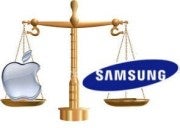
Apple’s legal battle with Samsung currently under way in federal district court in California has yielded a treasure trove of inside scoops about iPhone and iPad prototypes and future devices that may soon be on store shelves.
After just a week of courthouse drama, public documents have shown Apple’s designs for an iPhone with curved glass and an iPad with a kickstand, as well as discussions about an iCar and a 7-inch iPad. Samsung isn't immune to scrutiny either, with indications the Galaxy device maker has a 12-inch Retina-like slate headed your way. We should note, also, that both Apple and Samsung wanted to seal much of this evidence from public view, but Federal District Court Judge Lucy Koh nixed that early, saying that redactions would be few and that parties should assume the court records were open.

For More Details, Click Hare 

Here’s a look at five product highlights from the Apple-Samsung legal tussle.

Curved iPhone

iPhone 5 mockup
In mid-2011 rumors were circulating that Apple would launch an iPhone with curved glass, which turned out to be wrong when the iPhone 4S launched in October.
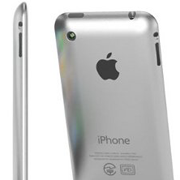
But Apple considered such a design for the original iPhone. Former Apple designer Christopher Stringer said Apple intended to produce an iPhone with curved glass, but gave up on the design due to cost concerns. Check out Network World for the complete story.

iPad Surface

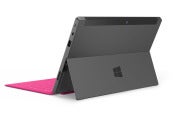
Microsoft’s built-in kickstand concept for its upcoming Windows 8-based Surface tablets may not be so innovative after all.
Microsoft Surface
Apple was considering a similar idea for the iPad based on prototype photos The Verge dug up from court documents.
The biggest difference, however, is that Apple was evaluating a single rod-style of a kickstand similar to a tripod leg or a bicycle kickstand. Microsoft’s Surface kickstand is a bar of plastic that folds neatly into the back of the device.

7-inch iPad: Jobs Was into It

Speculation continues that a 7-inch iPad is on its way to compete against devices such as the Amazon Kindle and Google’s Nexus 7, but the mini Apple tablet has yet to be announced.
Nevertheless, we now know Apple has at least considered selling such a device based on a January 2011 e-mail from Apple executive Eddy Cue that appears in court documents.
What’s more surprising, however, is that Cue claims in the e-mail that Jobs was receptive to the idea. The former Apple chief famously derided 7-inch slates in 2010 saying the smaller display sizes were not big enough to create quality tablet apps.

iMobile

It’s not clear just how far this idea got, but following the success of the iPod, Apple executives went crazy with ideas for products that could take Apple beyond computers.
One idea was an Apple-branded car, according to court testimony from Apple executives. The news follows public comments in May from Apple board member Millard Drexler, who is also the CEO and Chairman of J. Crew. Drexler said that Jobs had hopes of designing a car before he died in 2011. Fast Company has video of Drexler’s comments.

Samsung P10

Samsung may soon launch an 11.8-inch Android-based slate with 2560 by 1600 resolution at about 256 ppi, according to court documents uncovered by The Verge. The device’s high-res screen would put make it a Retina-like display similar to the newest iPad model. Code-named P10, the unannounced Samsung slate could launch in late 2012 or early 2013.
The one thing that has yet to leak from court documents is Apple’s plan for the next iPhone expected to debut on September 12.

For More Details, Click Hare 

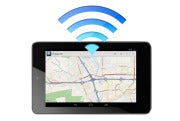
Ways to Get the Most From Your Wi-Fi-Only !!

Much to the chagrin (and much against the ill wishes) of wireless carriers such as AT&T, Verizon, Sprint, and T-Mobile, people are buying Wi-Fi-only tablets. In fact, some studies have shown that in 2011 up to 90 percent of all tablets sold in the United States relied on Wi-Fi, rather than on 3G or 4G LTE.
I hate to say it, AT&T, but this makes sense: Wi-Fi only tablets are cheaper (and I'm not talking exclusively about the Wi-Fi-only iPad, but also about tablets that never had a data option, such as the Kindle Fire and the Nexus 7), and people are discovering that they just don't need an extra data plan. Don't believe me? Check out these 10 tips for getting the most out of your Wi-Fi-only tablet.

1. Tether, Tether, Tether

If you already have a smartphone with a data plan, you don't need to waste money on an additional plan for your tablet. Instead, use your phone's plan to get an Internet connection for both devices.
There are two ways to tether, or turn you phone into an Internet hotspot, using today's smartphones.
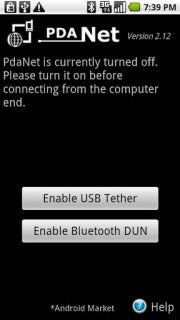
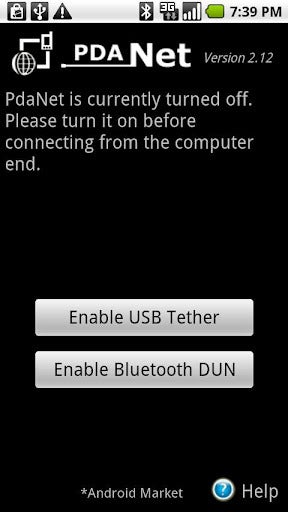
PdaNet tethering app
PdaNet tethering appOne option is to use your phone's built-in tethering ability, which means you'll likely have to pay your carrier an extra fee for the service. The other is to download a third-party tethering app such as PdaNet (for nonrooted Android phones), Wireless Tether for Root Users (for rooted Android phones), or PdaNet for iPhone (for jailbroken phones).
The only problem with tethering is that carriers do their utmost to discourage it. If you use your phone's default tethering ability, you'll have to pay your carrier a fee of around $20 for the privilege. That's $20 on top of your already pricey data plan--and you don't get any extra data.
And if you use a third-party tethering app, your carrier can charge you if it finds out (unless you happen to be on Verizon). And only jailbroken iPhones can run third-party tethering apps.
But jailbreaking, rooting, or paying a monthly fee may be a small price to pay for the freedom to use your Wi-Fi only tablet (and other devices, such as your laptop) wherever you can use your phone.

2. Get a Mobile Hotspot

Instead of tethering your tablet to your phone's data plan, you may want to consider picking up a mobile hotspot from your local wireless carrier.
A dedicated mobile hotspot can yield better results than tethering your phone's data connection. For starters, it's often faster and more reliable than a tethered phone's connection. And whereas tethering can drain a phone's battery quickly, mobile hotspots commonly deliver many hours of battery life.
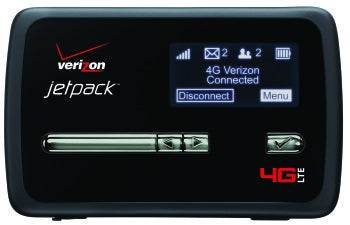
Verizon Jetpack 4G LTE Mobile Hotspot MiFi 4620L
Verizon Jetpack 4G LTE Mobile Hotspot MiFi 4620L I use the Novatel Wireless MiFi 4510L for Verizon LTE, which offers long battery life, excellent data speeds, and a solid connection--unlike my Galaxy Nexus phone.
Though the MiFi 4510L lost out in PCWorld's hotspot tests to the Samsung 4G LTE Mobile Hotspot, the main advantage of the MiFi 4510L is its ability to keep its connection while moving. The Samsung 4G LTE is speedier when you're sitting still, but, in my hands-on experience, the MiFi 4510L maintained a solid connection on a 9-hour drive to Vegas (our PCWorld tests didn't evaluate this capability).

3. Preload Magazines and Books

Tablets are the perfect travel device--they're lightweight, they have large screens, and you don't need to take them out of your bag during a TSA search. Tablets are also great because they let you carry around tons of reading material without weighing down your bag.
So the next time you head out of town (or go to the gym or hop on the train for your morning commute), try preloading some magazines and books on your Wi-Fi-only tablet so you can read at your leisure--without an Internet connection.
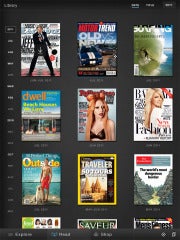
Zinio reading app
Zinio reading appZinio (for Android and iPad) is an excellent reading app that lets you subscribe to hundreds of magazines (in full color). Sure, you have to pay for the subscription (which isn't much cheaper than a print subscription), but you can download entire magazines before you leave your Wi-Fi zone.
The Amazon Kindle app (Android and iPad) is a great reading app--not just because you can download and read ebooks from Amazon's online store, but because you have free access to tons of ebooks from your local library. Find out whether your library participates by searching OverDrive.

4. Use Offline Mapping Apps

Mapping applications on smartphones and tablets have made getting lost practically obsolete (practically...), but such apps only apply to devices that have constant data connections, right? Wrong--thanks to offline mapping apps, you can stay on track wherever you are, data connection or not.
For a couple of years now, Google Maps has had an offline-viewing option that can even offer turn-by-turn directions without connecting to a network (providing that you've already looked up the route).
City Maps 2Go

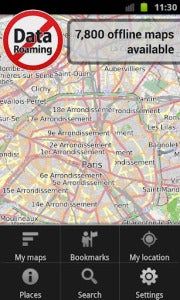
City Maps 2GoIf you're heading to a new city and you aren't sure when you'll be able to grab a Wi-Fi connection, try a mapping app such as City Maps 2Go (Android and iPad), which costs $1 to $2. This app lets you download thousands of maps for offline viewing (the iPad version currently has a promo for unlimited downloads, while the Android version offers five free downloads).

5. Read It Later

Suppose that you like to read Web pages--not magazines and books--on your tablet. Instead of letting your lack of Internet connection frustrate you, try using a service such as Pocket, formerly known as Read It Later.
Pocket lets you save Web pages from your computer, by email, or directly from select apps to a special Read It Later list. Once you've saved something to your list, you can open it from any of your devices, assuming that you've connected to the Internet long enough for your list to update.
Download the Pocket app for Android, iPad, or Kindle Fire, and read all of those webpages later on--without an Internet connection. 

6. Use Free Texting Apps

Having a Wi-Fi-only tablet with no phone service or data plan doesn't mean that you can't text your friends with the best of them.
Admittedly, texting on a Wi-Fi-only device doesn't make a lot sense for most people--after all, texting is normally used for instant communication, so it doesn't make a lot of sense to have to find a Wi-Fi connection before you can check your text messages--but some people do text casually. Plus, this approach will save you some money.
TextPlus Android app for texting
TextPlus Android app for textingOne free texting app, TextPlus (Android, iPad, Kindle Fire) lets you text any U.S. or Canadian number for free. Similarly, Pinger's Textfree (Android, iPad, Kindle Fire) lets you text to tons of countries for free, and it has the added benefit of giving you a real phone number so you can pretend that you really have a phone (and so your friends can text back to a phone number, instead of to an email address).

7. Load Up on Tablet-Optimized Offline Games

Mobile games are hot these days, but the hottest ones always seem to require a constant data connection. You can't play social games such as Zynga's FarmVille or Words With Friends unless you're connected to the Internet, which is fine unless you happen to have a Wi-Fi-only tablet and you're in a Wi-Fi-less area.
Osmos HD Android game
Osmos HD Android gameTo deal with that situation, try some tablet-optimized games that don't require an Internet connection--many games in the action/adventure, hidden-object, and puzzle genres don't. Titles worth checking out include the gorgeous puzzle game Osmos HD (Android, $3; iPad, $5); Shadowgun THD (Android, $5; iPad, $5), a third-person outer-space shooter; Dead Space (Android, $7, iPad, $10), a first-person horror survival game; and Empress of the Deep (Android, $4; iPad, $5), a hidden-object game.

8. Share Files Between Devices Wirelessly

Sending files between your Wi-Fi-only tablet and your computer can be extremely easy if you use an app such as WiFi Files (iPad) or WiFi File Explorer Pro (Android/Kindle Fire, $1).
These apps let you wirelessly transfer files between your tablet and your computer via a Wi-Fi connection. Note: Such transfers are faster and less complicated than (for example) emailing a file to yourself.
You can also check out syncing apps, such as SugarSync (Android and iPad) and Dropbox (Android and iPad), which automatically sync your selected files with all of your devices whenever you're connected to the Internet.

9. Find a Wi-Fi Connection

Finding a Wi-Fi connection usually isn't very difficult, but many popular dedicated apps such as Wi-Fi Finder require an Internet connection in order to search for a Wi-Fi hotspot. Obviously, if you're working with a Wi-Fi-only tablet, that prerequisite won't fly.
Wi-Fi Analyzer Android app
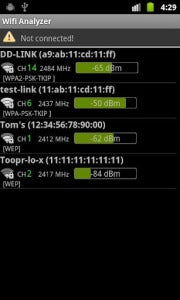
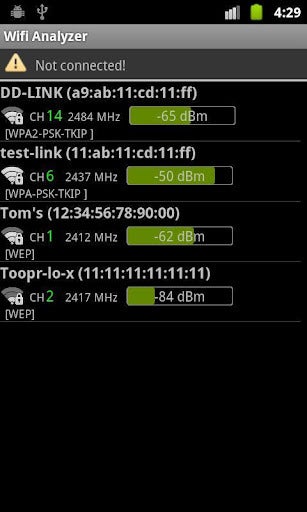
Wi-Fi Analyzer Android appInstead, check out apps such as Wi-Fi Analyzer (Android) and WiFi Scanner (Android) to see nearby networks and their signal strengths. (iPad users have a harder time of it because Apple pulls Wi-Fi scanning apps from the App Store; consequently, the only alternative is to jailbreak your phone.)
WiCall Android app
Want to know whether a "free" Wi-Fi network actually requires a browser log-in? Check out WiFi Browser Login (Android), which notifies you if the Wi-Fi network that you just connected to is about to shut you down when you open a browser window.

10. Use Wi-Fi to Make Phone Calls

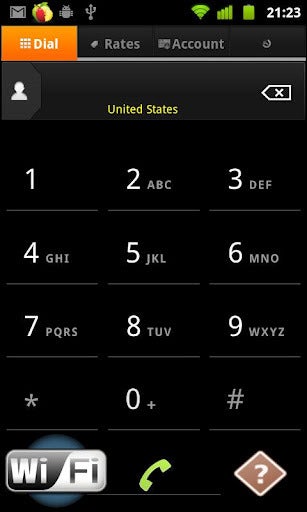
WiCall Android appAssuming that you never make calls on the road, maybe you can get rid of your pesky cellphone plan altogether--and use your Wi-Fi-only tablet to make phone calls through a service such as WiCall (Android), which lets you call over your wireless connection.
These calls aren't free--they cost $0.009 per minute for U.S. calls--but that's a pretty negligible charge. If you'd prefer to pay up front, you can sign up for a service such as GrooVe IP (Android, $5), which lets you use your Google Voice account to make free phone calls.
iPad users can check out the free MagicJack, which allows you to make free phone calls to any U.S. or Canadian phone number.

Data Plans--Who Needs 'Em?

Considering all of the things that a tablet can do without a data connection, it's no wonder that people are overwhelmingly choosing to purchase Wi-Fi-only models. 3G/4G tablets cost more, they require an extra data plan, and they will incur an extra charge on the new shared data plans.
In contrast, you can do just about everything you need to do (except, perhaps, answer emails on the fly or make phone calls on the road) with a Wi-Fi-only tablet. And if you ever do need an Internet connection, you can tether your tablet to your phone or sniff out a wireless hotspot.

Tuesday, July 17, 2012

Nokia Lumia 900 Now $50: But Do You Need It?

AT&T recently dropped the price of Nokia's flagship phone, the Windows Phone-powered Nokia Lumia 900, to $50 with a new two-year contract. It's a great deal for a high end phone that was already pretty cheap at the original price of $100, when most popular phones sell for $200. But is Nokia's phone worth it, even at $50?
The problem with the Lumia 900 is that it's essentially a dead end from a technology perspective. In the fall, Microsoft is rolling out Windows Phone 8, the next generation version of its new mobile platform. And all current Windows Phone devices can't upgrade to the new OS. Sure, Microsoft will be upgrading current Windows Phone 7.5 devices to Windows 7.8, but is that enough to convince you to live with the Lumia 900 for the length of a two-year contract with AT&T?
Here are a few things to consider.

Camera Extras

Nokia in late June added some great new features to its camera app including a self-timer, action shot function, a new panorama mode, and smart group shot that creates a composite photo from several snaps taken in quick succession. The new app is available now for Lumia phones in the Windows Phone Marketplace.

Other Apps

Nokia is also offering a new Nokia Play To app for streaming content on your phone to a PC, Blu-ray player, HDTV, or other DLNA-compatible device. A new app called Nokia Counter can track your cell phone usage including data, voice, and messaging. There are also updated versions of Nokia Music, Maps, Transit, and Drive.

Windows Phone 7.8

The biggest feature Lumia 900 users have to look forward to is the Windows Phone 7.8 update expected after the Windows Phone 8 launch this fall. Windows Phone 7.8 will give current Windows Phone 7.5 users the new Start Screen that is one of the centerpiece features of Windows Phone 8.
The new Start Screen removes the thin black strip on the right side of current devices and lets Windows Phone live tiles fill up the entire screen. You can also resize Windows Phone live tiles to cram as much or as little as you'd like into your Start Screen.
It will have three live tile sizes: a small square, medium-sized square, and a large rectangle. Current Windows Phone devices have two different, non-customizable live tile sizes. Live tiles are the square colored icons in the Windows Phone interface. The tiles are capable of displaying real-time information at a glance such as new e-mail messages, calendar appointments, social networking updates, and weather.

No Windows Phone 8

The biggest downside for the Lumia 900, and all Windows Phone 7 devices for that matter, is that Windows Phone 7.8 is no replacement for Windows Phone 8. The new features coming to the new mobile OS include an improved Web browser with Internet Explorer 10, removable SD card storage, and a digital wallet hub. Windows Phone 8 is also supporting wider hardware functionality such as multicore processor support, two new screen resolutions (1280-by-768 and 1280-by-720), and Near-Field Communication for mobile payments, social networking check-ins and other tap-and-go services.
Microsoft is also improving maps and directions in Windows Phone 8, but considering Microsoft will be relying on Nokia's mapping solutions, Lumia 900 users shouldn't miss out on any improvements.

18 Months of Support

Windows Phone 8 devices will be guaranteed to have 18 months of support from Microsoft in terms of updates, but Windows Phone 7 users shouldn't count on too many updates beyond 7.8.
During its Windows Phone 8 announcement in late June, Microsoft said Windows Phone 7.5 users could count on a Windows Phone 7.8 update and more 7.5-compatible app added to the Windows Phone Marketplace. But keep in mind that any app designed to take advantage of Windows Phone 8 features will not be backwards compatible to Windows Phone 7.8.

About Those Apps

If you're already a smartphone user and considering the jump to Windows Phone to grab a cheap Lumia, make sure you take a look at the Windows Phone Marketplace to see if the current app catalog meets your needs. With more than 100,000 apps you'll find a lot of stuff, but there might be some annoying gaps in the Marketplace that will make the Windows Phone transition harder. A big missing app for me personally is Dropbox. Sure, you can buy some imitators that hook into the Dropbox API, but nothing replaces having access to your files through a native Dropbox app.
The Lumia 900 is a great device and is one of PCWorld's top 10 rated phones, but before you buy it make sure the Lumia 900 is the right device for you for the next two years.

Thursday, July 12, 2012

Unlocked Galaxy Gets Android Jelly Bean Update!!

Have a Samsung Galaxy Nexus that isn't running on Verizon or Sprint? Well good news! The update to Android Jelly Bean has started rolling out and should be hitting your phone in the next couple of days. The update brings with it Google Now, new notifications, and a much more responsive interface thanks to Project Butter.
In the Google+ post that announced this exciting bit of news, Google also mentioned that the Motorola Xoom, Nexus S, and other Galaxy Nexus phones (it presumably meant those running on Sprint and Verizon), were the next devices in line to receive the upgrade to Jelly Bean. The company also stated that the Nexus 7, which is shipping later this month, would be running the latest Android operating system--something which it had already announced at Google I/O last June.
Unfortunately, outside of the Nexus 7, Google didn't give a timeframe for when we could expect the update to become available to those other phones (and tablet). Hopefully it's sooner rather than later, but at least for now more people can enjoy the benefits of owning a Google developer device.

For More Details, Click Hare 

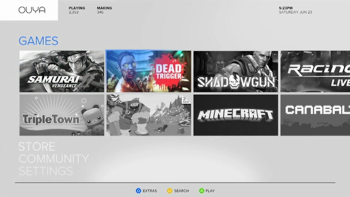
Android-Powered Ouya New Games Console!!

It’s not a secret that gamers are pining for new hardware. Whether that’s next-gen consoles or new handhelds, it doesn’t really matter, they just want something new to play games on. That seems to be where the fervor directed at Ouya comes into play.

For More Details, Click Hare 


Our own Jared Newman wrote about the console's unveiling and what you need to know already, but I find the whole concept of a new, Android-powered home console extremely interesting. Android isn’t what I would immediately think of if someone asked what operating system a low-cost home console should run on.
There’s a few reasons, but the biggest is the state of games on Android platforms. Take a minute to search through Google Play (formerly known as Android Market) and find some of the few games that have actually been optimized for Android tablets; there aren’t many. Now take that number, compared to the overall number of games available for Android, and try to estimate how many of those will be optimized for play on a television. Maybe a few dozen, at most?
Thousands of people are investing in a system that will be able to play a few dozen games at launch. That isn’t much. Sure, it’s all about investing in the future. Developers might start to optimize their titles once they realize that there’s a market for them, but that takes time. Unless developers can get their hands on final Ouya hardware a few months ahead of time, they won’t be ready for launch (The Ouya Kickstarter does claim that some developers will receive Ouya dev kits before the console launches -- Ed.). The Android OS is known for being very picky about the specific type of hardware that the user has. An application might work perfectly on one phone, but not at all on another, simply because of the onboard video card. That’s the first challenge that users are going to have to face, but there’s plenty of challenges ahead for developers as well.
One of the biggest issues with Android is piracy. The whole appeal of Ouya is that it’s open-source, the console manufacturer doesn’t decide what is allowed on the console and what isn’t. That also means that they don’t really decide how things go on the console. Any Android application is available illegally by simply searching for the name of the application and file type and I see that being the case for games released on Ouya as well. According the manufacturer, the console will have a USB port for expanded storage, and that could very well be used for this nefarious purpose.

One of the main features of Ouya is that some part of the game has to be free-to-play. Developers can charge for titles, but they have to offer some kind of demo or trial. It’s a good model, because most gamers want to be able to try something out before they put down their money. This is something that PlayStation has done a great job with; they offer 60-demos of most of their titles to PlayStation Plus users, and I’m hoping that we see something similar here. Even with this caveat, there are still full versions of games and with Ouya’s open-source nature, you can bet that someone will find a way to crack and distribute them. It’s something that developers are going to have to consider before putting in the effort and development time to optimize their titles for Ouya.
We really have no idea what Ouya could do. It’s an extremely novel concept and the Kickstarter video sold me on the UI (something that I always find troubling with Android), but there’s still so much that’s unknown. We don’t even know what the left side of the controller looks like! We can only hope that they reveal more information as the Kickstarter campaign continues. At the time of writing, they’ve raised over $3.2 million dollars and it has been less than 48 hours. That says something about what gamers are looking for.

For More Details, Click Hare 

Monday, July 2, 2012

How to Install Ice Cream Sandwich on Your Kindle Fire!!

How To Hack Your Kindle Fire
With a vibrant 7-inch IPS display and a 1GHz dual-core processor, the $199 Kindle Fire can make for one lovely tablet. With a bit of work--but no hardware modifications--you can set up Android 4.0 on your Kindle Fire and thenceforth use the device as a powerful general-purpose tablet despite its incredibly low price. Email, games, Web browsing (with Chrome for Android or any other browser)--the Kindle Fire can do it all.

For More Details, Click Hare 


This guide is directly based on the excellent guide written by XDA Developers user Kinfauns. Kinfauns's guide and his Kindle Fire for Beginners guide are highly recommended reading, but they're fairly lengthy. We've simplified the process and then tested it ourselves, so we can walk you through all of steps; but please use caution when tinkering with your gear, and understand that PCWorld accepts no responsibility for the consequences. That said, read on for a quick step-by-step procedure that you can follow to transform your Kindle Fire into an Android 4.0 tablet!

Ingredients

You will need:
  • A Kindle Fire with a full battery (if it's not full, take time to recharge it fully).
  • A USB cable for connecting the Kindle Fire to your computer.
  • A Windows computer that you have Administrator rights for.
  • fbmode by XDA Developers user Pokey9000.
  • The FIREFIREFIRE bootloader for Kindle Fire.
  • The TeamWin Recovery image, also known as TWRP.
  • The Kindle Fire Utility, a third-party toolkit that simplifies many tasks and includes vital drivers.
  • An ICS (Android 4.0) ROM for the Kindle Fire. You can pick one from this list of ROMs. For this wow-to, we'll be using AOKP, a well-regarded third-party ROM. The latest AOKP version at the time of this writing is build 38, but it's a good idea to check for the most recent version.
  • [Optional] The Google Apps bundle, including Gmail, Google Play, and other essential Android apps. This is packaged separately from the ROM for legal reasons. If you download AOKP, you can find Google Apps for AOKP release 38, under GApps (the last link on the page).
  • A willingness to void your warranty and to use the Windows command line. This how-to does not use graphical tools.

Install the Kindle Fire Drivers

For this procedure to work, your computer must correctly recognize the Kindle Fire as an Android device. Here's how to make that happen:
1. If your Kindle Fire is connected to your computer, unplug it.
2. The KFU zip contains a folder called Kindle Fire Utility. Unzip the contents of this folder into a new folder, c:\kfu.
3. Run the install_drivers.bat file that's in the c:\kfu folder. Windows will pop up a UAC prompt, and then start the Kindle Fire Driver Installer.
4. As you step through the installer, you'll receive a Windows Security alert warning you that the drivers are not signed. Install the drivers anyway.
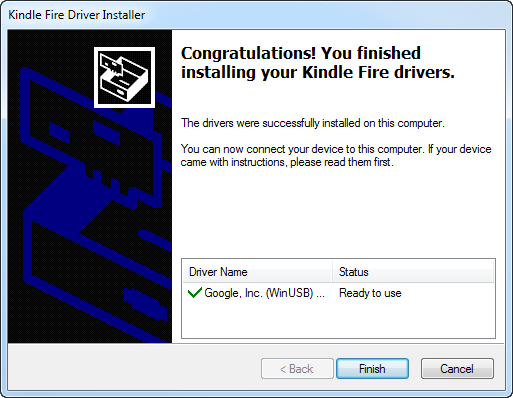
5. The installer should complete successfully and show a confirmation dialog with the driver name:
Kindle Fire driver installation confirmation.Kindle Fire driver installation confirmation.

Verify That the Drivers Were Successfully Installed

Before doing anything risky with your Kindle Fire, make sure that your PC fully recognizes it as an Android device:
1. Connect the Kindle Fire to your computer and wait for a few moments while Windows recognizes it (even if you've plugged it in before).
2. Run Device Manager (Click Start, right-click My Computer, and then select Manage > Device Manager).
3. You should see the Kindle Fire registered as an Android Composite ADB Interface, under Android Phone in the Device Manager tree.
If you see this listing, you're good to go. If this isn't exactly what you see, you'll need to do some troubleshooting; for that, refer to the original guide which has an extended troubleshooting section under the heading "What can I do if the drivers won't load?"

Switch to Fastboot Mode

It's still not too late to turn back. Up until this point, you haven't done anything to the Kindle itself. But now you're about to take the first step that involves making changes to the tablet. So, without further ado:
1. Make sure that the Kindle Fire is still connected to your computer.
2. Create a new subfolder, c:\kfu\software.
3. Unzip fbmode.zip into c:\kfu\software. It contains a single file, called fbmode (with no suffix).
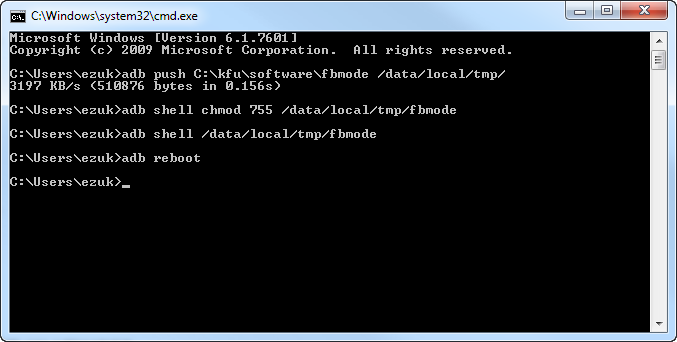
4. Open a command prompt window, and copy fbmode into a user-writable location on the Kindle Fire using ADB:
adb push C:\kfu\software\fbmode /data/local/tmp/
5. Edit fbmode's permissions so that it can run:
adb shell chmod 755 /data/local/tmp/fbmode
6. Run fbmode to switch to fastboot mode:
adb shell /data/local/tmp/fbmode
7. Using ADB, reboot the Kindle Fire:
adb reboot
At the end of this process, your command prompt window should look like this:
Command prompt window after switch to fastboot mode.Command prompt window after switch to fastboot mode.
Your Device Manager should look like this:
Kindle Fire listing in Device Manager after switch to fastboot mode.


The meaning of this notation is that the name of the device changes from Android Composite ADB Interface to Android ADB Interface.
Finally, the Kindle Fire itself should look like this:

Kindle Fire screen after switch to fastboot mode.Kindle Fire screen after switch to fastboot mode.
The Fire will simply display a logo and stay put. It's not "stuck"; rather, it's in fastboot mode, awaiting further instructions.

Install a Recovery Image

Next, you'll install a recovery image--a miniature operating system that you'll use later to flash the complete ROM. The recovery image will also come in handy for creating full backups of the device, among other things.
1. Copy the TWRP .img file into c:\kfu\software. At this writing, the latest TWRP image is named openrecovery-twrp-blaze-2.1.1.img.
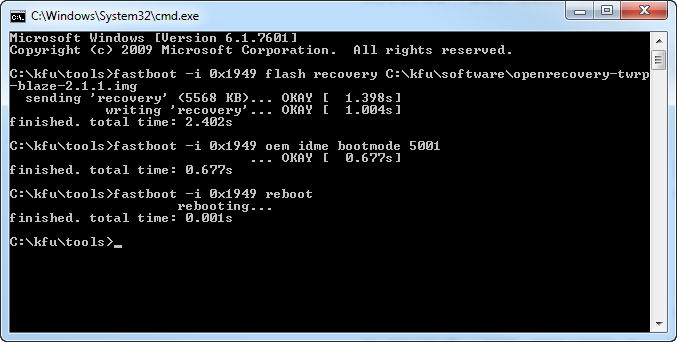
2. Open a command prompt window at c:\kfu\tools and install the image:
fastboot -i 0x1949 flash recovery C:\kfu\software\openrecovery-twrp-blaze-2.1.1.img
3. Change the boot mode to Recovery:
fastboot -i 0x1949 oem idme bootmode 5001
4. Reboot into TWRP:
fastboot -i 0x1949 reboot
At this point, your command prompt should look like this:
Command prompt window after installation of recovery image.Command prompt window after installation of recovery image.
And your Kindle Fire should look like this:
Kindle Fire screen after installation of recovery image.Kindle Fire screen after installation of recovery image

Install a Custom Bootloader

You are well into the process now. Next, install the FIREFIREFIRE custom bootloader:
1. Take the FIREFIREFIRE Zip file and place it (still zipped) into c:\kfu\software. At this writing, the latest filename is called fff-u-boot_v1.4a.zip.
2. Copy FIREFIREFIRE into the Kindle Fire's /sdcard directory:
adb push C:\kfu\software\fff-u-boot_v1.4a.zip /sdcard/
3. On the Kindle Fire, press the Install button. Navigate to /sdcard if needed (you should already be there by default), and select fff-u-boot_v1.4a.zip.
4. Swipe to confirm. You should get a success message:
Custom bootloader success message.Custom bootloader success message.
5. Back up the stock OS so you can roll back to it at any time. In the root TWRP menu, select Backup, modify the options if you like (the defaults are fine), and swipe to confirm. Backing up will take a while, which is one of the reasons why starting the process with a full battery is so important.
Backing up the stock OS can take a while.Backing up the stock OS can take a while.

Flash the Ice Cream Sandwich ROM

You're almost there! Now you just need to copy the ROM and flash it. As noted at the outset, we used AOKP in our test runs, but different ROMs may have different flashing procedures. Read the documentation for the ROM of your choice.
1. Place the .zip files containing the ROM image and Google Apps into c:\kfu\software.
2. Push the ROM and Google Apps onto the device:
adb push C:\kfu\software\aokp_otter_build-38.zip /sdcard/ adb push C:\kfu\software\gapps-ics-20120429-signed.zip /sdcard/
3. In TWRP, select Wipe > Factory Reset. This will remove all existing files from the data and cache partitions, but it won't affect the /sdcard directory, which contains media files.
4. In TWRP, select Install. Navigate to the ROM .zip file that you placed on the device, tap it, and swipe to confirm. This will take a few moments:
Installing the Ice Cream Sandwich ROM.Installing the Ice Cream Sandwich ROM.
5. Once that is done, tap the Back button in the upper right corner, and repeat the process with the Google Apps .zip file.
6. Tap Reboot System in the lower right corner, and boot into your brand-new Android 4.0 experience! If you wish, you can now remove the ROM and Google Apps .zip files from your device.
You should have a fully functioning Android tablet in your hands, so play around with it and let us know what you think. If you run into any problems during installation, share them in the comments below so that the community can pitch in and help you solve them. Good luck!

Friday, June 29, 2012

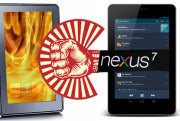
Google Nexus 7: A Missile Aimed Directly at Amazon's Kindle Fire!!

When Google rolled out the specs of its new Nexus 7 tablet Wednesday at Google I/O, I was impressed. Aside from a few limitations, it looked like a pretty deluxe piece of gear. Then I heard the $200 price tag, and all of a sudden things didn’t make sense.

When you look at the specs of the new Nexus 7 tablet, you can’t help but notice a disconnect between the technology jammed into that little package and the $200 that Google is asking for it. The Nexus 7 has some fairly expensive-looking technology inside it--a high-definition display, multicore processors, and more.

For More Details, Click Hare 


Losing to Win

It’s very likely that Google is selling the Asus-built Nexus 7 for less than it cost to make it. That means that Google will be subsidizing the cost of each one it sells. “I don’t think they are making money on this,” says IDC analyst Tom Mainelli. “If they are smart, they have set up the supply chain in such a way that they break even.”
But my guess is that selling the Nexus 7 for anything less than $300 precludes any possibility of breaking even. The actual amount that Google is subsidizing the Nexus 7 is something that no one other than Google and Asus will likely ever know. So why would Google come out with a fancy new tablet it knows will not turn a profit?

Taking Back Android

Amazon's $200 Kindle Fire
Mainelli explains that Amazon built an extraordinarily inexpensive but not very functional tablet--the Kindle Fire--in part by using a highly modified and limited version of the Android operating system. And the Kindle Fire has sold very, very well.

Amazon's $200 Kindle Fire.Google, Mainelli believes, wants to “take back” the Android OS from Amazon, meaning that it wants consumers to know and expect the experience of using full-blown Android (in this case, the new Jelly Bean version) on a tablet. And it seems apparent that the Nexus is much more like using a real computer than the Kindle Fire is.

The whole reason Android was created in the first place was to point phone and tablet users toward Google content and services, Mainelli pointed out.
Amazon subverted that plan by using Android to power a device designed to consume content and services bought only from Amazon. Google’s best defense against that was to create a better tablet with a better user experience at the same price point as the Fire. That’s the Nexus 7.

Content-Consuming Devices

“Google is trying to demonstrate to its partners how to make a tablet that is affordable, yet full-featured and able to display content in an attractive way,” Mainelli says. Nexus 7 users, Google hopes, will constantly buy their content and apps from the Google Play store. Admittedly, this looked like a pretty appealing proposition in the demonstrations we saw Wednesday at the Google I/O conference.

Looking at the recent tablet announcements from Microsoft (the Surface) and Google, one could draw the conclusion that Apple’s scheme of selling hardware and the content and apps that run on it is winning the day.
Apple, Google, and Microsoft want to sell you a device (in this case, a tablet) that is tightly linked to their own content store (Apple Store, Google Play, Windows Live), and that displays the books, music, apps, and movies bought at the store beautifully and seamlessly. The device, of course, can also suggest relevant content, and sell it to you with just a few clicks.

And these companies seem more and more willing to sell the devices for less money, in hopes that they can make their money back by selling a lot of content through the device.

The Battle for Mind Share

There’s also the issue of mind share and momentum. Google wants both consumers and content creators to get excited about Android again.

When consumers get excited, they buy more tablets and content. But consumers will only get excited if they can buy from a wide selection of apps and other content from the store that serves the device. So it’s very important that Google get developers and content partners fired up about Android as well.

“Google needs to get enough people into the ecosystem, so they'll sacrifice making money on the hardware to make sure that there are enough pure Android tablets in the world to power their own ecosystem,” Mainelli says.

Better Android Tablets

That excitement has not happened for the group of Android tablets on the market now. A big part of why Android tablets have failed is because they have been priced too expensively by Google’s hardware partners, Mainelli points out.
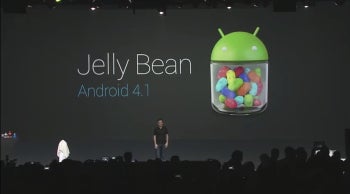
The Nexus 7 is powered by the new Android 4.1
The Nexus 7 is powered by the new Android 4.1 "Jelly Bean" OS.Google may be trying to demonstrate to its partners the mix of functionality and low price needed to get people excited about Android tablets.
The same thing might be said about Microsoft: It could easily have had an OEM partner like Nokia manufacture the Surface, but it chose to set the design and pricing standard to which future Windows 8 tablets must adhere.

For More Details, Click Hare 


“Both Microsoft and Google are now selling their own tablets,” Mainelli says. “They are basically saying to their hardware partners “You guys aren't doing it right; this is how it’s done.”

Google’s willingness to subsidize the Nexus 7 is proof that there’s a lot at stake for the company here. But if anybody has the deep pockets needed for such a “lose-to-win” strategy, it’s Google.

Tuesday, June 26, 2012

Smartphones and Laptops: New Ways to Pair Them!!

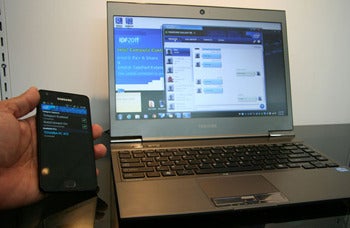
Smartphones and Laptops: New Ways to Pair ThemEach new gadget brings speculation about what older device it will replace--full-featured laptops supplant desktops, while ever-smarter phones relieve you from carrying a laptop on occasion. But don't overlook the partnerships that can result. Soon, for instance, you’ll be able to use an Ultrabook to charge your phone wirelessly, or you'll be able to transfer files by tapping your smartphone to a laptop lid.
Today, most people connect their smartphones and laptops only occasionally--for transferring a photo, say, or by tethering the phone for Internet access on the laptop. We tend to use these two mobile devices separately, because we've never had a perfect, seamless way to keep the devices connected and in sync. With rapidly developing mobile technologies, though, we’re getting closer. Here’s a look at the burgeoning simpatico relationship between smartphones and laptops.

Apps for Continual Connectivity and PC Control

Smartphones and Laptops: New Ways to Pair Them

Intel's Pair & Share sends images from a mobile device to a PC or TV.
Intel announced last year apps that make connecting smartphones and Windows PCs easier. For example, the Pair & Share app quickly sends photos from your Android phone, iPhone, or tablet to your computer screen or TV, and the TelePort Extender app puts the phone’s texting and caller information on the computer.
The free apps are available for download now, but Intel promises even more interaction between mobile devices and laptops--particularly with the new class of Ultrabook laptops.
Smartphones and Laptops: New Ways to Pair Them

TelePort Extender shows phone information on a PC screen.
As part of its mission to position Ultrabooks as "the pinnacle of mobile computing devices," the chip maker is working with PC manufacturers to add innovative technologies to the laptops. Aside from touch interfaces and voice and gesture recognition, Intel’s plans include more applications for “using smartphones to interact with and control an Ultrabook or desktop PC,” according to a recent Intel statement.
This means that in addition to transferring data, smartphones will be able to manipulate your laptop--remotely controlling the PC, perhaps in ways we haven’t seen yet. Instead of needing several desktop-mobile connectivity apps (such as a remote desktop tool, a remote control for presentations, a media controller, contact-syncing utilities, and multimedia-syncing apps), we could have one seamless approach.

Wireless Smartphone Charging

The interaction will go both ways: A laptop may manipulate or control a smartphone, too. Intel demonstrated a wireless phone-charging feature for Ultrabooks at the Computex trade show this year. Inside the Ultrabook is a slim transmitter; on the phone is a receiver. You just place the phone next to the Ultrabook to charge the handset--no need to carry around a phone charger or to remember to pack a USB cable.
TransferJet technology offers similar wireless charging capabilities, plus the ability to transfer data at a fast maximum rate of 560 mbps. Although we haven’t seen many TransferJet devices since Sony developed the technology and showed it off in 2008, inductive charging and cable-free file transfer certainly could become killer features for your laptop and smartphone, especially for frequent travelers.

Tap to Connect

Smartphones and Laptops: New Ways to Pair ThemOther technologies being built into laptops and smartphones allow the devices to share tasks without making physical contact. One expands the near-field communication short-range wireless protocol, now used mostly for mobile payments systems such as Google Wallet’s “tap-and-pay” system. MasterCard, meanwhile, is incorporating its PayPass technology into Ultrabooks so that you can wave your smartphone at your laptop to make online purchases more securely.
NFC may have other handy uses, such as enabling wireless information sharing between devices. With an NFC-enabled phone and laptop, you may be able to send a contact card, website address, videos, or other information from your phone to your PC without needing to install additional apps or wire the devices together. NFC-enabled phones could also allow you to verify your security information on websites or your laptop. In the future, NFC may support quicker Bluetooth pairing between your phone and laptop. The Hewlett-Packard Envy 14 Spectre is one of the first Ultrabooks to have built-in NFC support.
The Future Is Connected

All of our devices are becoming smarter and more connected. In the years to come, using your smartphone and laptop--as well as your TV, tablet, and other connected devices--together will be simpler. Start playing a game on your laptop, and finish it on your phone. Stream anything from your smartphone to your laptop, or vice versa. Seamlessly access all your information on any device. We’ve seen hints and examples of such capabilities already, but that’s just scratching the surface of what’s starting to be possible.